
Strong 8K IPTV Login Failed? How to Fix It

You type in your details, press sign in, and the app says “Login Failed! Please check your Server address, Username and Password.” It is one of the most common messages our customers send us, and the good news is that it is almost never a problem with the service itself. In most cases one small detail is wrong, and you can fix it in a couple of minutes.
Quick answer: re-enter your server URL exactly as sent to you, including http:// and the port number, remove any spaces from your username and password, and make sure you are using the right login type for your app. If it still fails, test the same details in the Strong 8K app.
What “Login Failed” actually means
When you sign in, the app sends your server address, username and password to the server and waits for a yes. “Login Failed” means the server did not accept them, or the app could not reach the server at all. The table below shows the usual causes.
| Cause | How common | Quick check |
|---|---|---|
| Typo or extra space in the details | Very common | Retype slowly and check for a space at the end |
| Server URL missing http:// or the port | Very common | Compare it with the details we sent you |
| Wrong login type for the app | Common | Xtream Codes, M3U link or MAC address? |
| Expired subscription or changed details | Sometimes | Did you renew or change plan recently? |
| Internet provider blocking the server | Sometimes | Try a different DNS or mobile hotspot |
1. Check the server URL format
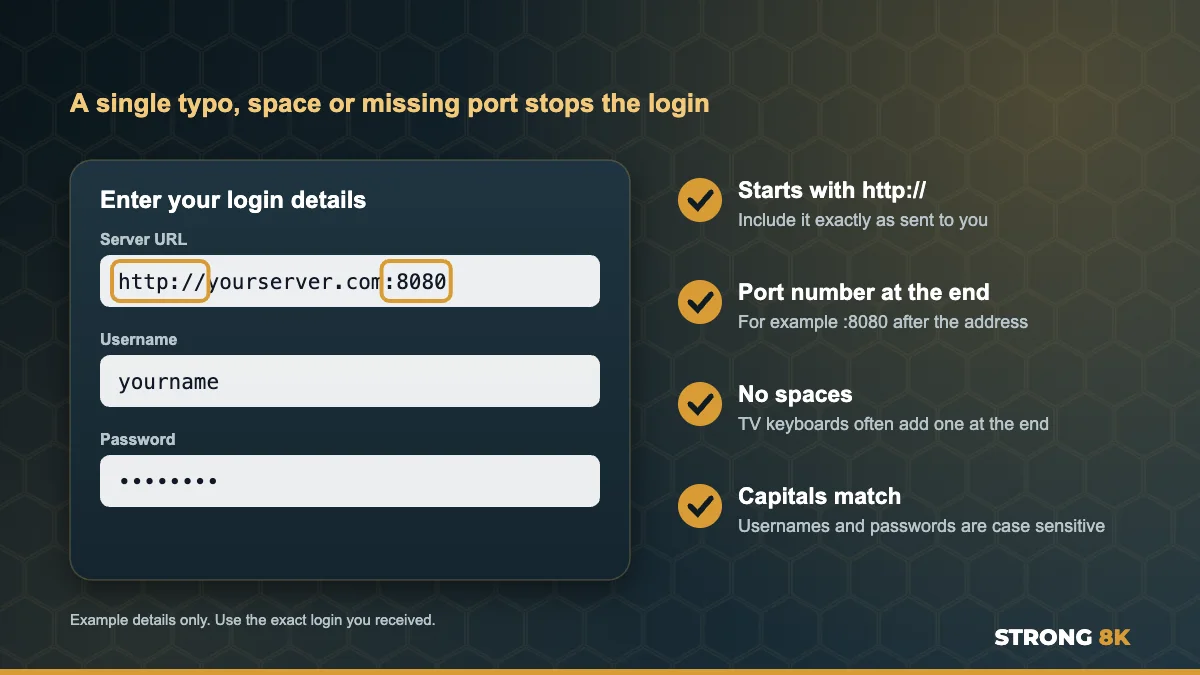
The server URL is the part people get wrong most often. It must be typed exactly as it appears in your login message, usually starting with http:// and ending with a colon and a port number, for example :8080. Leaving out the port, adding “www”, or using https:// when your details say http:// are all enough to make the login fail.
- Copy the URL character by character from your login message
- Keep the port number at the end
- Do not add a slash or extra words after the port unless your details include them
- If your app has separate fields for URL and port, put the port only in the port field
2. Remove spaces and check capital letters
Usernames and passwords are case sensitive, so “John123” and “john123” are different logins. TV keyboards also add a space after a word automatically, which you cannot see on screen. Delete the field completely and type it again, then move the cursor to the end to check there is no space. If you copy and paste from a phone, check that no extra character came with it.
3. Use the right login type for your app
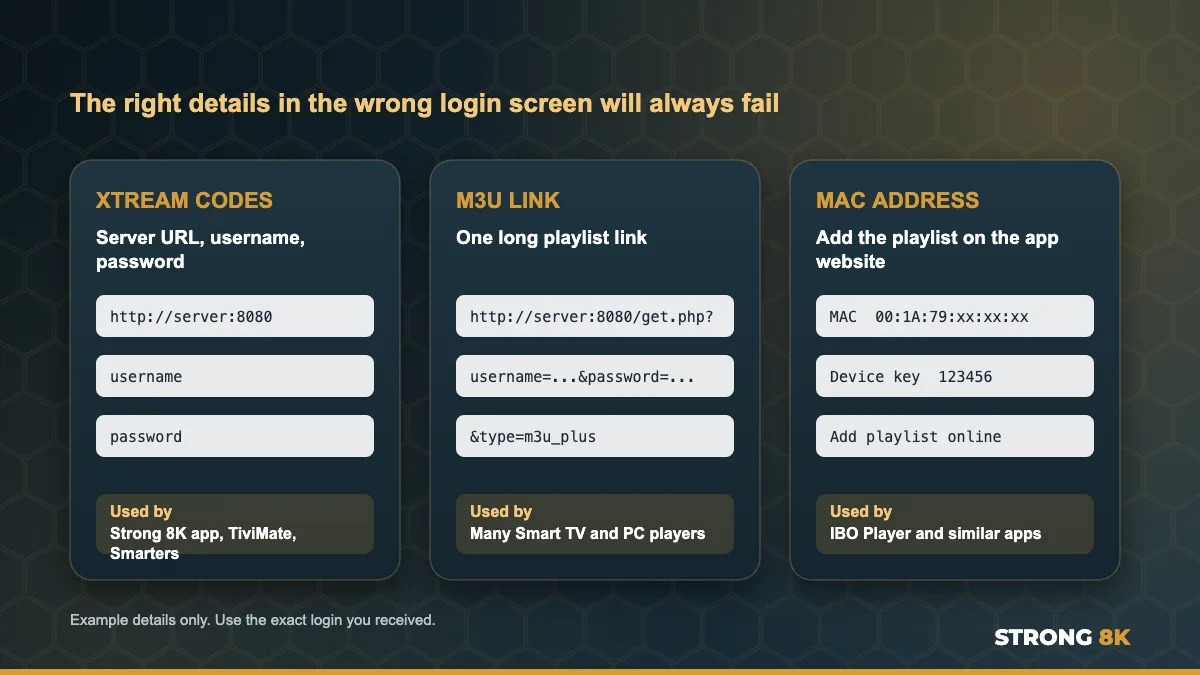
IPTV apps sign in in different ways. If you put the right details into the wrong kind of login screen, it will always fail.
| Login type | What you enter | Used by |
|---|---|---|
| Xtream Codes | Server URL, username and password | Strong 8K app, TiviMate, Smarters style players |
| M3U playlist link | One long link that contains your details | Many Smart TV and PC players |
| MAC address | Nothing on the TV, you add the playlist on the app website | IBO Player and similar apps |
Not sure which one your app uses? Our Strong 8K IPTV installation guides show the exact login screen for every device.
Not sure which details go where? Send us a photo of your login screen and we will tell you exactly what to enter.
Get Login Help4. Check your subscription and latest details
If your plan has expired, every app on every device will show a login error. The same happens if you renewed or changed plan and received new details but are still using the old ones. Check the date on your latest login message, or message our team and we will check your account status for you. You can see all plans on the IPTV subscription page.
5. Check how many devices are signed in
Your plan allows a set number of screens at the same time. Some apps show a login or connection error, rather than a clear message, when the account is already playing on another device. Close the app fully on other TVs and phones, wait a minute and try again. If more people in your home watch at once, here is how to watch IPTV on two TVs at the same time.
6. Test your details in the Strong 8K app
This is the quickest way to tell whether the problem is your account or the app you are using. Install the free Strong 8K app (8K Pro) and sign in with the same details. If it works there, your account is fine and the other app is the issue, usually because of an old version or a different login format.
7. Restart and clear the app data
Sometimes an app holds on to old, broken login information. Unplug your device for 30 seconds, then clear the app cache. If that does not help, clear the app data as well, which removes saved logins, and add your details again from scratch. On Firestick the steps are in Settings, Applications, Manage installed applications, as shown in our guide to install IPTV on Firestick.
8. Check for internet provider blocking
If the app says it cannot connect, or the login fails on home Wi-Fi but works on mobile data, your internet provider may be blocking or slowing the server. Change the DNS on your device or router to a public service such as 1.1.1.1 or 8.8.8.8, or try a VPN, then sign in again.
Login failed on popular apps
| App | Most common cause | Fix |
|---|---|---|
| IPTV Smarters | Old app version or URL field missing the port | Update the app and re-enter the URL with the port |
| IBO Player | Playlist added to the wrong MAC address | Re-add the playlist on the IBO website, then press Reload (see our IBO Player playlist not loading fixes) |
| TiviMate | Wrong playlist type chosen | Choose Xtream Codes and enter URL, username and password |
| Strong 8K app | Typo, space or expired account | Retype the details, then message our team |
If your app shows a different message, such as “No Connection” or “Playlist failed to load”, our Strong 8K IPTV not working troubleshooting guide explains every common error, and our list of the best IPTV player apps for Firestick can help you pick a more reliable player.
Still getting Login Failed?
If you have checked everything above, our team can check your account in a minute. Send your username, device and app name, plus a photo of the error. Never post your login details publicly, for example in comments or social media. You can also contact Strong 8K IPTV support another way. New to Strong 8K? Try the service first with a 24 hour IPTV free trial.
Send us your username, device and a photo of the error, and we will check your account straight away.
Check My AccountFrequently Asked Questions
Why does my IPTV say Login Failed?
The server did not accept your details or the app could not reach it. The most common causes are a typo, a missing port number in the server URL, a space at the end of the username or password, or the wrong login type for your app.
Do I need http:// in the IPTV server URL?
Yes, in most apps. Type the server URL exactly as it appears in your login message, including http:// and the port number at the end.
My login works on my phone but not on my TV. Why?
The details are correct, so the problem is the TV app or how the details were typed on the TV. Check for automatic spaces and capital letters, or use the Strong 8K app on the TV.
Can an expired subscription cause Login Failed?
Yes. An expired account shows a login error in every app, on every device. Message our team to check your account status.
Is it safe to send my login details to support?
Yes, to our official WhatsApp support. Never post your login details publicly, such as in comments or on social media.