

Ethernet vs Wi-Fi for IPTV: Which Is Better and How to Connect
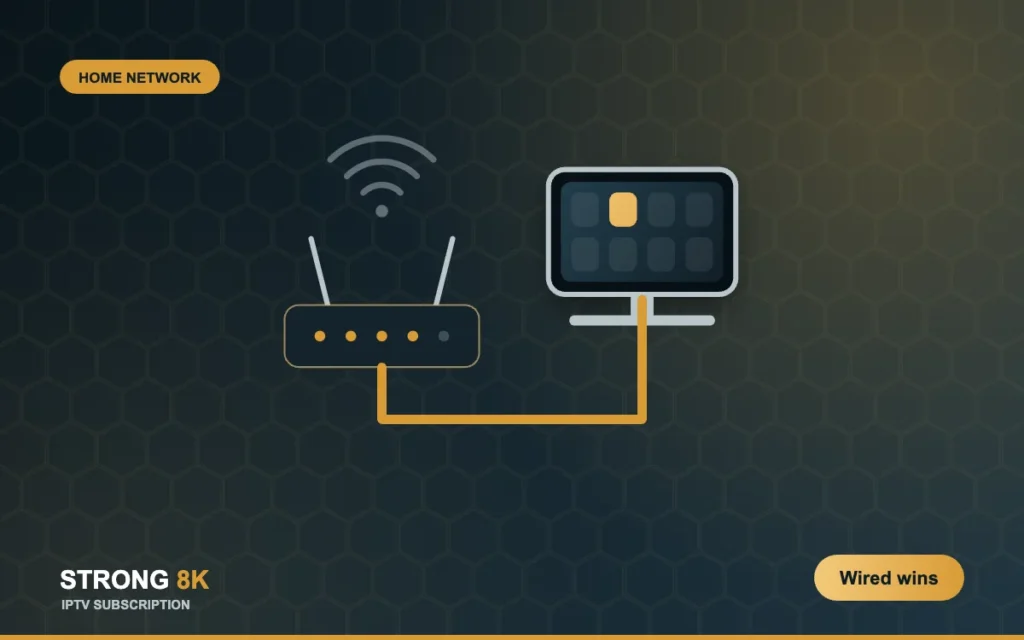
If your IPTV freezes during big matches, drops quality every few minutes or takes ages to change channel, the link between your router and your TV is the most likely cause. Wi-Fi is convenient, but it shares airtime with every phone and laptop in the house, weakens through walls, and suffers from interference from neighbours. A cable does not. This guide compares Ethernet and Wi-Fi for IPTV, shows what to do when your TV is far from the router, and explains how to get a wired connection to a Firestick that has no network port.
Quick answer: Ethernet is better for IPTV whenever you can use it. It gives a steady speed with almost no drops. If a cable is not practical, use a powerline kit or a mesh Wi-Fi system with a node near the TV, and connect to the 5GHz band.
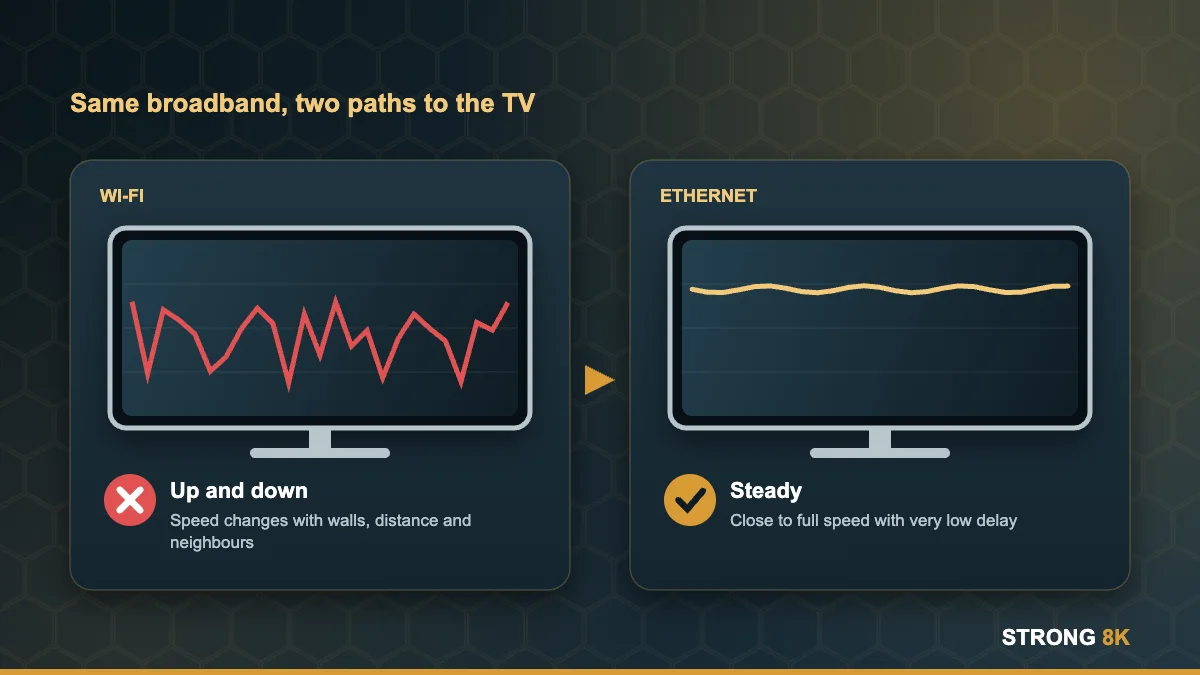
Ethernet vs Wi-Fi at a Glance
| Ethernet cable | Wi-Fi | |
|---|---|---|
| Stability | Very stable, no interference | Varies with walls, distance and neighbours |
| Speed at the TV | Close to your full line speed | Often much lower than the line speed |
| Delay (latency) | Very low | Higher and less consistent |
| Setup | Needs a cable or adapter | No cables |
| Best for | Main TV, 4K, live sport | Bedrooms, portable devices, HD |
Why Wi-Fi Causes IPTV Buffering
Live TV is less forgiving than films on demand. A film app can download several minutes ahead and hide a short drop. A live channel only buffers a few seconds, so even a brief dip in Wi-Fi shows on screen as a freeze or a spinning wheel. That is why a speed test can look fine while the channel still stutters: the average is good, but the connection is not steady. Our guide to IPTV speed requirements explains how to test this properly.
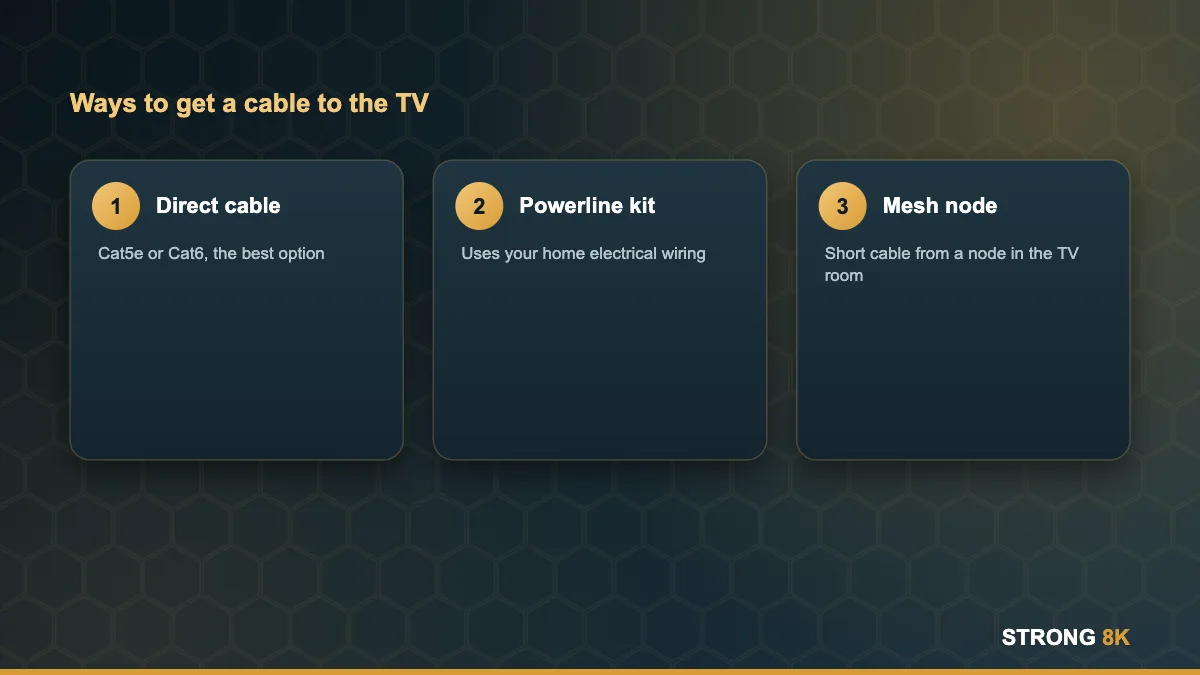
Your Options for a Wired Connection
1. A direct Ethernet cable
The best option if the router is in the same room or a cable can run along the skirting. Any Cat5e or Cat6 cable is fine for IPTV. Flat cables are easy to hide under carpets and behind furniture.
2. Powerline adapters
Powerline kits send the network through your home electrical wiring. Plug one adapter next to the router and one next to the TV, then connect each with a short cable. Plug them straight into a wall socket, not an extension lead, and keep both on the same electrical circuit for the best results. Speeds depend on your wiring, so buy from a shop with an easy return policy.
3. Mesh Wi-Fi with a wired port
Many mesh systems have Ethernet ports on each node. Place a node near the TV and connect the device to it with a short cable. The mesh carries the signal across the house. See our router and mesh setup guide.
How to Connect a Firestick by Cable
Firesticks have no Ethernet port, but Amazon sells an Ethernet adapter for Fire TV that plugs in between the stick and its power supply. Third party USB Ethernet adapters also work with many models. Once connected, the stick switches to the wired network automatically; you can confirm it in Settings, Network.
A 100 Mbps adapter is more than enough, because a 4K IPTV stream needs about 25 Mbps. If you have not picked your stick yet, our guide on which Firestick to buy explains which models still support IPTV players.
Not sure which adapter fits your device? Message us your model and we will point you to the right one.
Ask our teamIf You Have to Use Wi-Fi
- Connect the TV device to the 5GHz network if it is within a room or two of the router. Use 2.4GHz only for longer distances.
- Keep the router high, central and out of cupboards.
- Restart the router and the TV device once a week.
- Pause big downloads and game updates while watching live sport.
- Choose a device with a modern Wi-Fi radio. The Fire TV Stick 4K Max supports Wi-Fi 6E.
Still buffering after this? Work through our full IPTV buffering fix.
Connection sorted? Try Strong 8K free and see the difference on live channels.
Start free trialFrequently Asked Questions
Is Ethernet better than Wi-Fi for IPTV?
Yes. Ethernet gives a steady speed with very low delay, which stops most buffering on live channels. Wi-Fi can work well but varies with distance and interference.
Can I use Ethernet with a Firestick?
Yes, with an Ethernet adapter. Amazon sells one for Fire TV, and many USB Ethernet adapters also work.
Are powerline adapters good for IPTV?
Usually, yes. Results depend on your wiring. Plug them directly into wall sockets and test before you rely on them.
Should I use 2.4GHz or 5GHz Wi-Fi for IPTV?
Use 5GHz when the device is close to the router because it is faster and less crowded. Use 2.4GHz only when the TV is too far for 5GHz.
Does Wi-Fi 6 help IPTV?
It helps in busy homes with many devices, as long as both the router and the TV device support it.
More Strong 8K guides
Read next: IPTV speed requirements, router setup for IPTV, the IPTV buffering fix and the Strong 8K troubleshooting hub. Browse all IPTV guides, or contact our support team if you need help. Running your own IPTV business? See our reseller panel.