

How to Set Up a VPN for IPTV: Settings That Don’t Cause Buffering

Many people use a VPN for privacy when streaming. Used well, it runs in the background and you never notice it. Set up badly, it adds delay, lowers speed and becomes the hidden reason your channels buffer or refuse to load. This guide does not recommend any VPN brand. It explains the settings that matter for IPTV, how to set a VPN up on common TV devices, and how to tell quickly whether the VPN is causing a problem.
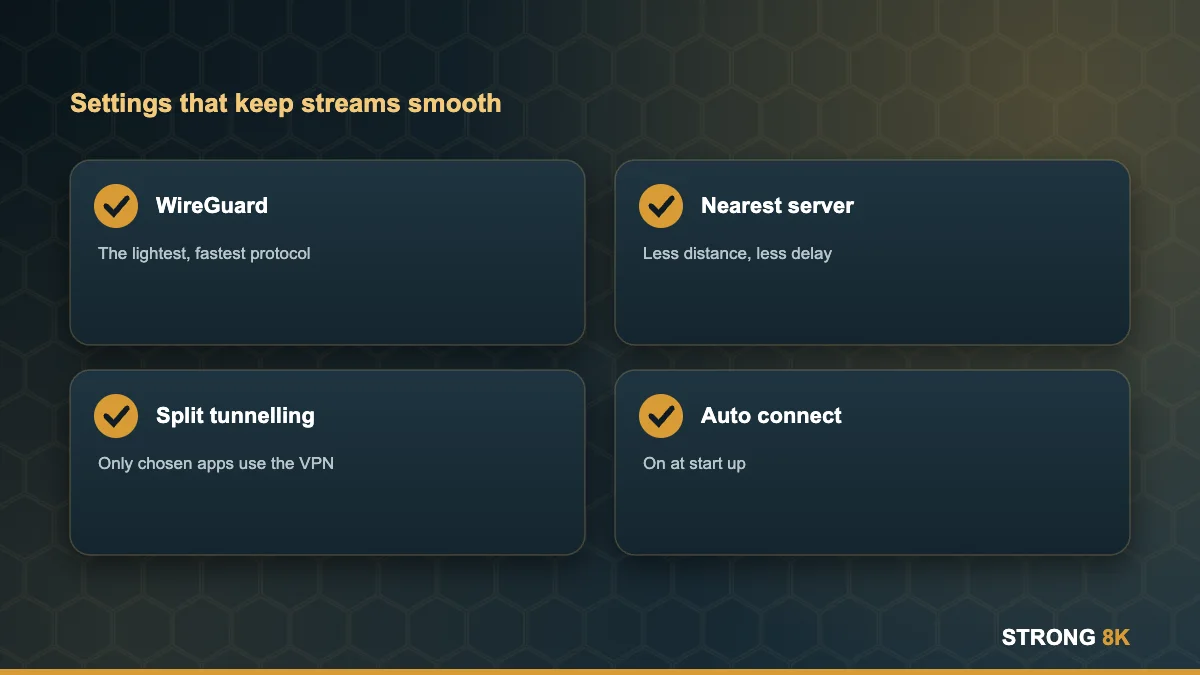
Quick answer: use the WireGuard protocol (some apps call it by their own name), connect to the nearest server in your own country, and use split tunnelling so only the apps you choose go through the VPN. If channels stop loading, turn the VPN off and test again before changing anything else.
Do You Need a VPN for IPTV?
A VPN is optional. Using one is legal in the UK. People use them to keep their browsing private from their network, to protect their connection on shared Wi-Fi, or because they already pay for one. Strong 8K works with or without a VPN. If you do not already use one, you do not need to add one to watch.
VPN Settings That Matter for IPTV
| Setting | Best choice for IPTV | Why |
|---|---|---|
| Protocol | WireGuard | Fastest and lightest on TV devices |
| Server location | Nearest server in your country | Shorter distance means less delay |
| Split tunnelling | On, with only chosen apps routed | Keeps other apps at full speed |
| Kill switch | Off on the TV device, or set to app level | Prevents streams cutting out on a short drop |
| Auto connect | On at start up | Saves reconnecting every time |
Why the protocol matters
Older protocols such as OpenVPN encrypt traffic in a heavier way, which costs speed on low powered sticks. WireGuard was designed to be lighter and usually keeps much more of your speed. Most VPN apps have a protocol option in settings.
Why server choice matters
Every extra mile adds delay. A far away or overloaded server can turn a fast line into a slow one. Choose the closest server and switch if speed drops in the evening.
How to Set Up a VPN on Your TV Device
Firestick (Fire OS)
Install your VPN provider’s app from the Amazon Appstore, sign in, choose WireGuard and the nearest server, then turn on auto connect. Vega OS Fire TV sticks only run apps that are in the Appstore for Vega, so check availability first. See Vega OS explained.
Android TV and Google TV
Install the VPN app from the Play Store. Most support split tunnelling, so you can choose exactly which apps use the VPN.
Smart TVs and Apple TV
Apple TV supports VPN apps from the App Store. Many Samsung and LG TVs do not run VPN apps; the alternative is a router level VPN, which covers every device in the home but slows everything a little.
Channels not loading with your VPN on? Message us and we will help you find the cause.
Get helpIs the VPN Causing Your Problem? A 2 Minute Test
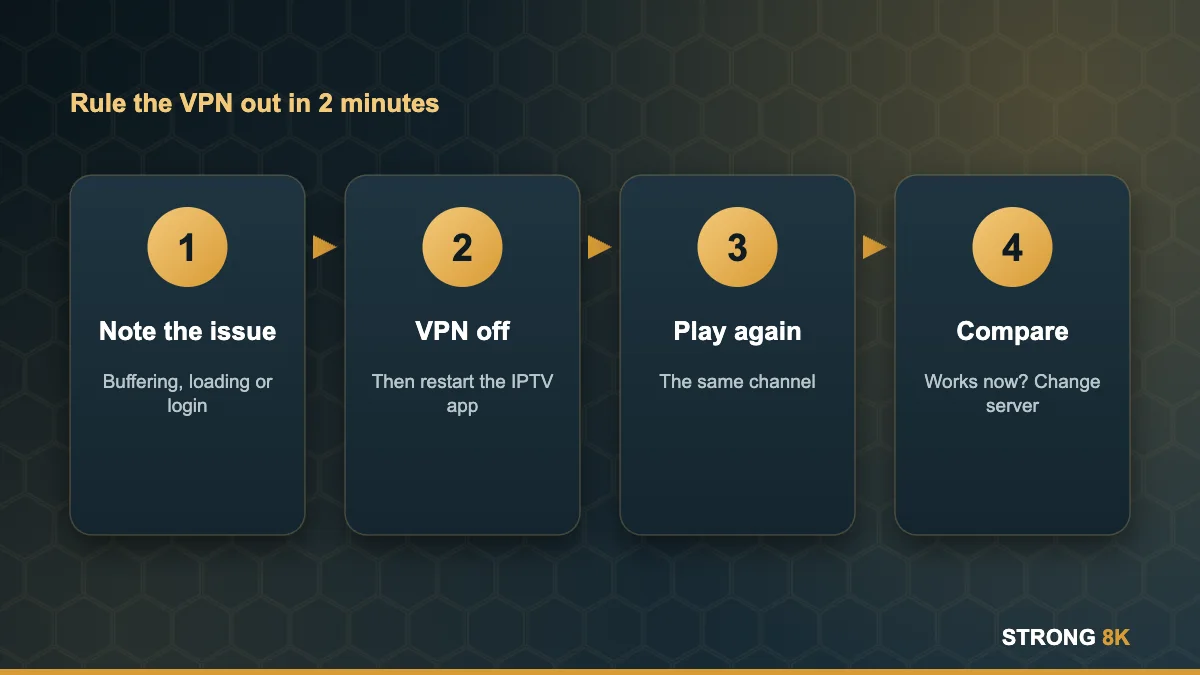
- Note the problem: buffering, a channel that will not load, or a login error.
- Turn the VPN off completely and restart the IPTV app.
- Play the same channel again.
- If it now works, the VPN or the chosen server is the cause. Try a closer server or a different protocol.
- If it still fails without the VPN, the cause is elsewhere. Use our troubleshooting hub.
Many no connection and login failed messages turn out to be a busy VPN server, so this test is always worth doing first.
Speed Tips When Using a VPN
- Expect some speed loss. Plan for at least 35 Mbps on the TV for one 4K stream with a VPN on.
- Use a cable or strong 5GHz Wi-Fi so the VPN starts from a good connection. See Ethernet vs Wi-Fi.
- Reconnect if the VPN has been running for days.
- Keep the VPN app updated.
For the basics on speed, read what internet speed you need for IPTV.
Settings sorted? Try Strong 8K free with or without your VPN.
Start free trialFrequently Asked Questions
Do I need a VPN for IPTV?
No. A VPN is optional and legal in the UK. Strong 8K works with or without one.
What is the best VPN protocol for IPTV?
WireGuard. It is lighter and faster than older protocols, which matters on Firesticks and other low powered devices.
Why does IPTV buffer with my VPN on?
The server is too far away or overloaded, or the protocol is slow. Pick the nearest server and switch to WireGuard.
What is split tunnelling?
A setting that sends only chosen apps through the VPN, while everything else uses your normal connection at full speed.
Can I use a VPN on a Samsung or LG smart TV?
Most do not run VPN apps. You can set the VPN up on your router instead, which covers every device in the home.
More Strong 8K guides
Read next: IPTV speed requirements, Ethernet vs Wi-Fi, the no connection fix and the troubleshooting hub. Browse all IPTV guides, or contact our support team if you need help. Running your own IPTV business? See our reseller panel.