
How to Stop IPTV Buffering: 9 Fixes That Work
Nothing is more frustrating than a picture that freezes just as a goal goes in. The good news is that most IPTV buffering has a simple cause at home, and you can usually fix it in a few minutes without calling anyone. Work through the nine fixes below in order and test a channel after each one.
Quick answer: restart your app, device and router in the right order, check your speed on the TV itself, and connect with an Ethernet cable if you can. Those three steps solve most buffering on Firestick, Smart TV and Android boxes. If your problem is a different error, our Strong 8K IPTV troubleshooting guide covers them all.
Why does IPTV buffer?
Buffering happens when your device receives video more slowly than it plays it. The player pauses to catch up, and you see the spinning circle. Unlike cable and satellite, IPTV arrives over your internet connection, which is why the fix is usually at home (we explain the difference in IPTV vs cable and satellite). The cause is almost always one of these:
| Cause | How you can tell |
|---|---|
| Slow or unstable internet | Every channel buffers, and other apps like YouTube struggle too |
| Weak Wi-Fi signal | It works near the router but not in the bedroom |
| Busy network at peak times | Fine in the day, buffering in the evening or during big matches |
| Full app cache or low memory | The app gets slower the longer you use it |
| One channel with a problem | Only that channel buffers while the rest play smoothly |
Once you know which one fits, jump to the right fix below. If you are not sure, start at fix 1.
1. Restart everything in the right order
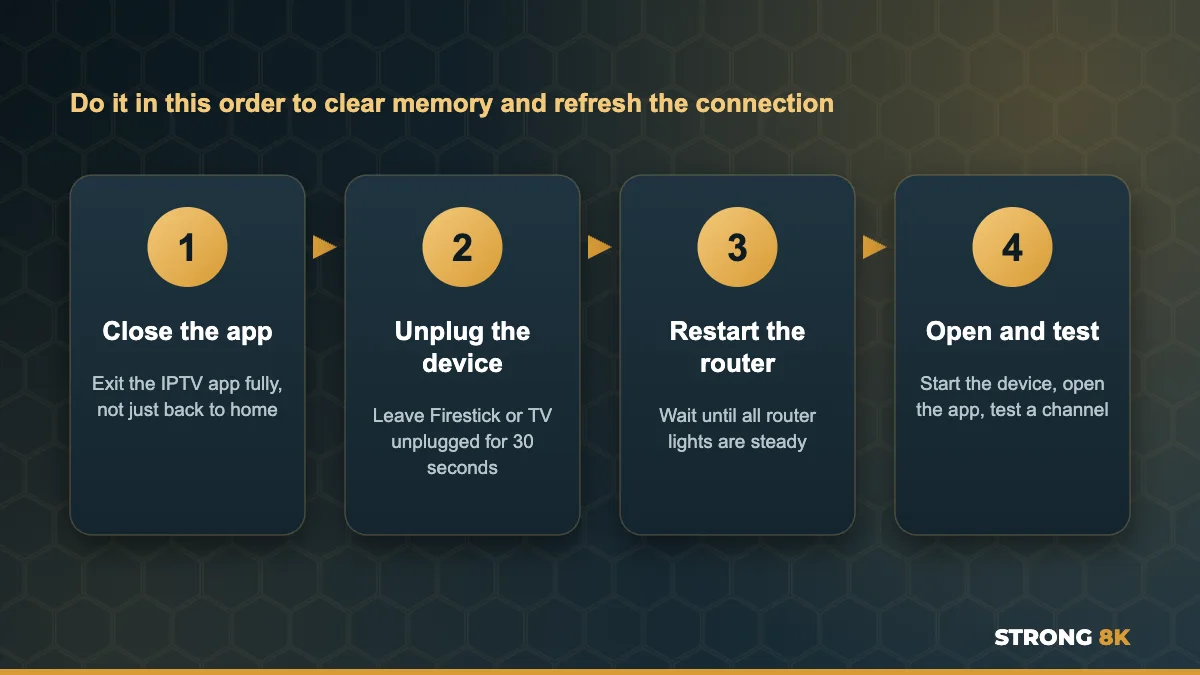
Close the IPTV app completely, unplug your streaming device for 30 seconds, then restart your router. When the router lights are steady again, start the device and open the app. Pressing the power button on the remote only puts most devices into standby, so a real unplug matters. This clears memory, refreshes the connection and fixes more buffering than any other step.
2. Test your internet speed on the TV itself
Run a speed test on the device you watch on, not on your phone next to the router. The speed your TV actually gets can be far lower than your broadband package. On Firestick and Android TV you can install a free speed test app, and many Smart TVs have a network test in their settings.
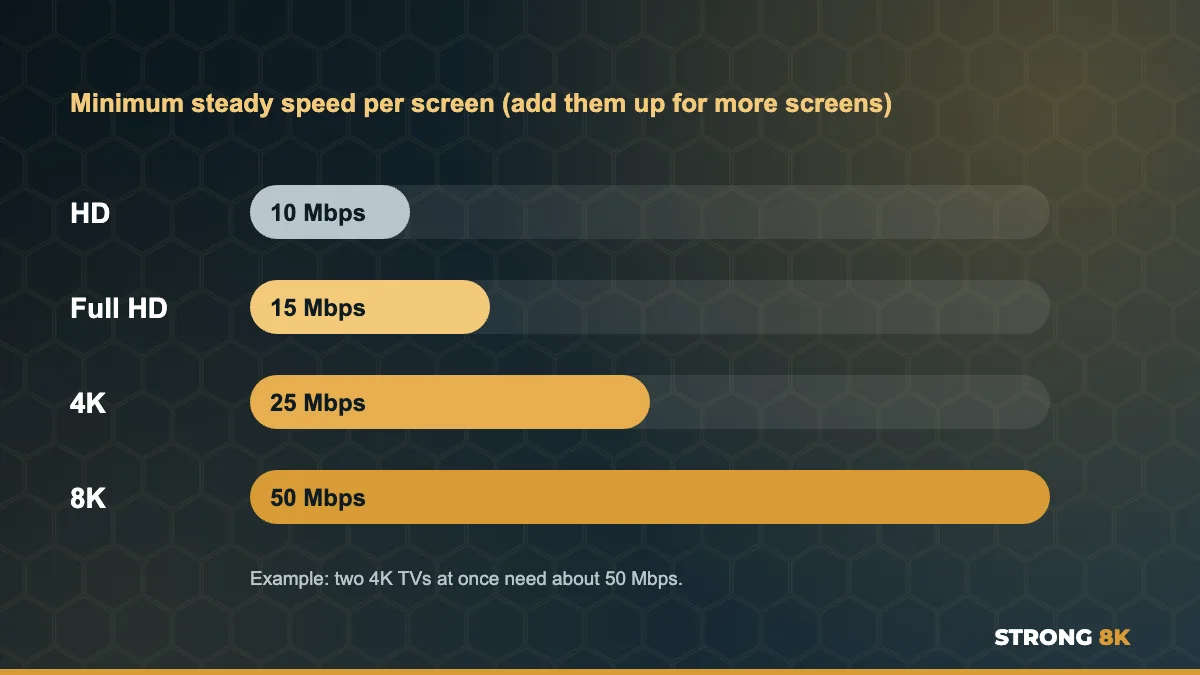
As a guide, you need around 10 Mbps for HD, 15 Mbps for Full HD, 25 Mbps for 4K and 50 Mbps or more for 8K, per screen. If several people are streaming at once, add those numbers together. Watching on more than one screen? Here is how to watch IPTV on two TVs at the same time.
3. Use a cable instead of Wi-Fi
An Ethernet cable from the router to the TV or box is the single biggest upgrade for stability. Wi-Fi drops in speed through walls and floors, and it is shared with every phone and laptop in the house. If a cable is not practical, a powerline adapter or a mesh Wi-Fi point near the TV gives a much stronger signal than relying on a router in another room. Firestick owners can use a small Ethernet adapter that plugs into the power port.
4. Move to the 5 GHz Wi-Fi band
Most routers broadcast two networks. The 5 GHz band is faster and less crowded than 2.4 GHz, so connect your streaming device to it if it is close enough to the router. The 2.4 GHz band reaches further but is slower and picks up interference from neighbours, microwaves and Bluetooth devices.
Still buffering after these steps? Send us your speed test result and we will tell you what to change.
Get Help5. Clear the app cache
On Firestick and Android TV, go to Settings, Applications, Manage installed applications, choose your IPTV app and select Clear cache. This removes old data that slows playback without deleting your login. On Smart TVs, unplugging the TV for a minute does a similar job. If the app still feels slow, uninstall and reinstall it. If the channel list will not load at all, see our fixes for IPTV channels not loading.
6. Change the stream format or player
Many IPTV players let you switch between stream formats or video decoders. If one channel keeps stuttering, try the other option in the player settings, or test the same channel in a second player app. Our guide to the Strong 8K app (8K Pro) explains the best settings, and our list of the best IPTV player apps for Firestick compares the most popular options.
7. Change your DNS
Your internet provider’s DNS servers can be slow at busy times, and some providers slow down streaming traffic during big events. Switching your device or router to a well known public DNS service such as 1.1.1.1 or 8.8.8.8 can make channels load faster and more reliably. If buffering only happens during big matches, a VPN can also help by stopping your provider from slowing the stream.
8. Lower the quality for a while
If your connection is borderline, watch the HD version of a channel instead of 4K during busy evenings. You keep a smooth picture, and you can switch back to 4K when the network is quieter. A smooth HD picture is always better than a 4K picture that keeps stopping.
9. Check that it is not just one channel
If only one channel buffers while others play perfectly, the problem is that stream rather than your setup. Try another version of the channel if one is listed, and send our support team the channel name and your device on WhatsApp so they can look into it.
One channel keeps buffering? Tell us which one and we will check it on our side.
Report a ChannelHow to stop buffering for good
- Unplug your device once a week to clear its memory
- Keep your IPTV app updated and install it only from official sources
- Use Ethernet for your main TV
- Pause big downloads and game updates while you watch
- Open the channel 15 minutes before a big match so you have time to fix anything
Still buffering?
If you have tried every step, contact Strong 8K IPTV support with your speed test result and device model, and our team will help you find the cause. You can also test everything risk free first with our 24 hour IPTV free trial, and pick the right plan on our IPTV subscription page. For country specific internet tips, see Strong 8K IPTV by country.
Want to fix the cause for good? Check how much internet speed IPTV really needs, see why a cable beats Wi-Fi for live TV, and try these free router settings that stop buffering.
Frequently Asked Questions
Why does my IPTV keep buffering?
Usually because your device is receiving video more slowly than it plays it. Slow or unstable internet, weak Wi-Fi, a busy network in the evening or a full app cache are the most common causes.
What internet speed do I need for IPTV without buffering?
Around 10 Mbps for HD, 15 Mbps for Full HD, 25 Mbps for 4K and 50 Mbps for 8K, per screen. Add the numbers together if more than one screen is watching.
Why does IPTV buffer at night but not in the day?
Evening is peak time, so your provider’s network is busier and some providers slow streaming traffic. A wired connection, a different DNS or a VPN can help.
Does a VPN stop IPTV buffering?
It can, if your internet provider is slowing down streaming. If your connection itself is slow, a VPN will not make it faster.
Is Ethernet better than Wi-Fi for IPTV?
Yes. A cable gives a steadier speed than Wi-Fi, especially through walls, and is the single biggest upgrade for buffering.