
Parse Error When Installing an IPTV App on Firestick? How to Fix It
You type the app link into Downloader, the file downloads, you press Install, and the Firestick says “Parse Error. There was a problem parsing the package.” It sounds technical, but it simply means the Firestick could not read the app file. The file is either incomplete, not made for your Fire OS version, or the Firestick is not allowed to install it. Each of those has a quick fix, and you do not need a computer for any of them.
Quick answer: delete the downloaded file, free up some storage, and download it again from the official link. Make sure Downloader is allowed to install apps in Developer options, and that you are installing the TV version of the app, not a phone version.
Why a Firestick Shows a Parse Error
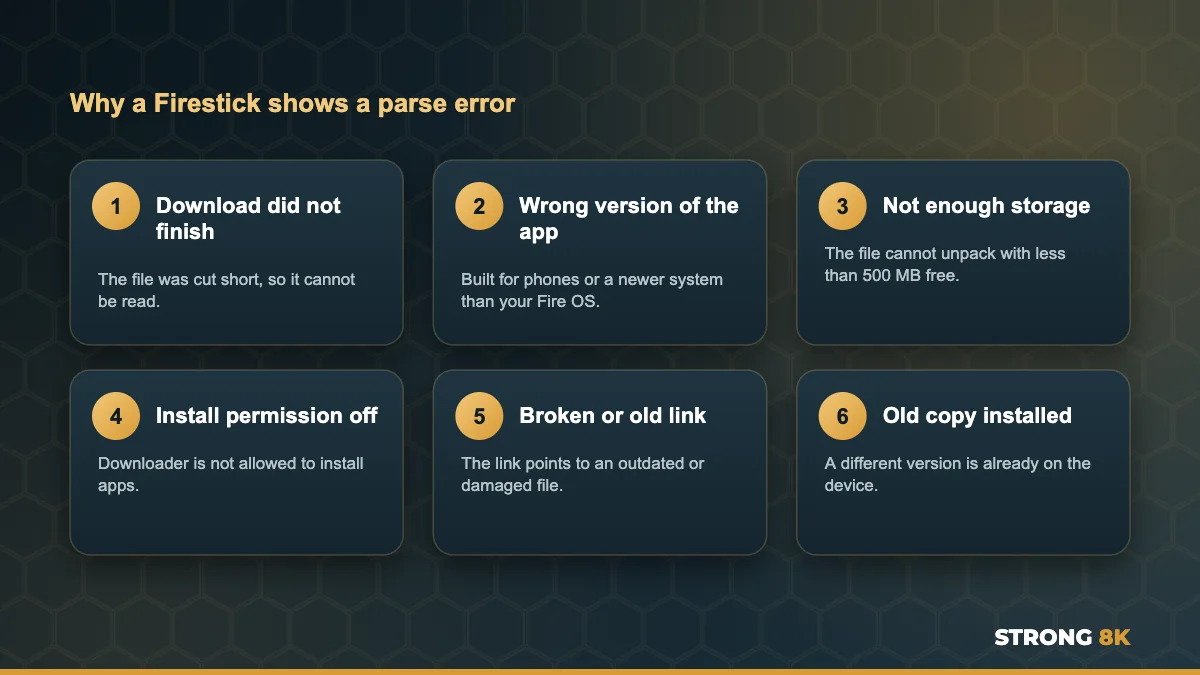
An Android app arrives as a single package file. Before installing it, the Firestick opens the package and checks it. If the file is cut short, damaged, or asks for a newer system than your Firestick has, that check fails and you see the parse error.
1. Delete the File and Download It Again
An interrupted download is the most common cause, especially on Wi-Fi far from the router. In Downloader, open the Files section, delete the failed file, then enter the link again and let it finish completely before you press Install. If you can, move the Firestick closer to the router or connect an Ethernet adapter while downloading.
2. Free Up Storage
The Firestick needs room to unpack the app as well as store the download. Check your space under Settings, My Fire TV, About, Storage, and keep at least 500 MB free. Delete old downloads in Downloader, uninstall apps you no longer use, and clear the cache of large apps.
3. Allow Downloader to Install Apps
If Downloader is not allowed to install apps, the install can fail. On newer Fire OS versions, Developer options is hidden until you unlock it.
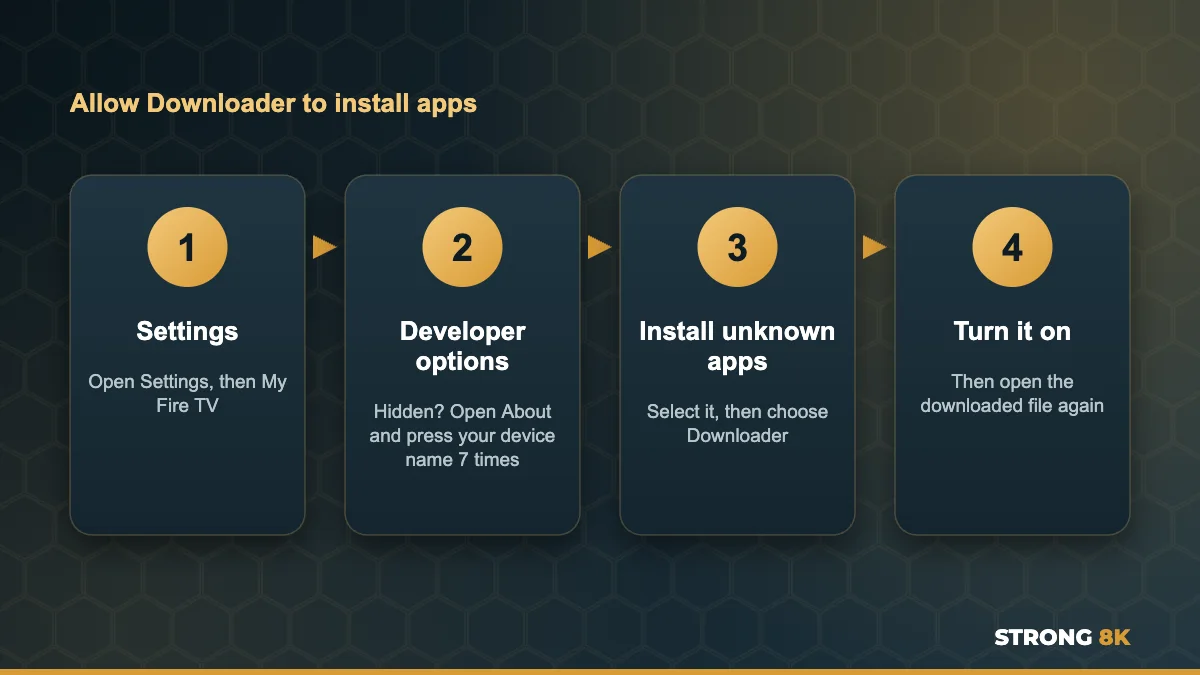
To unlock Developer options, go to Settings, My Fire TV, About and press the select button on your Fire TV Stick name seven times. A message confirms that you are now a developer, and Developer options appears in the My Fire TV menu.
Need the correct download link for your Firestick? Message us your Firestick model and we will send the right one.
Get the Right Link4. Use the Correct Version for Your Firestick
Some app files are built for phones, for newer versions of Android, or only for 64 bit devices, and older Firesticks cannot read them. Check your Fire OS version under Settings, My Fire TV, About. Then download the TV or Firestick version of the app from the official link, not a phone version from a random site. For the Strong 8K app, always use the link on our Strong 8K app (8K Pro) page.
5. Remove an Older Copy First
If a different version of the same app is already installed, the new one can fail to install. Go to Settings, Applications, Manage Installed Applications, uninstall the old copy, restart the Firestick and install the new file.
6. Restart the Firestick
A full restart clears temporary problems that can stop an install. Go to Settings, My Fire TV, Restart, or unplug the Firestick for 30 seconds. Then open Downloader and try the install again.
7. Check the Link Itself
If the same link fails every time, even after a fresh download, the file on that link may be outdated or damaged. Get the current link from the official source, or ask our team for it. Avoid app files from unknown websites, as they can be old, broken or unsafe.
Parse Error vs Other Install Messages
| Message | What it means | What to do |
|---|---|---|
| Parse Error, problem parsing the package | The file could not be read | Fixes 1 to 4 |
| App not installed | Install was blocked, often by an older copy | Fix 5, then Fix 6 |
| Install blocked or unknown sources | Downloader is not allowed to install apps | Fix 3 |
| Not enough space | Storage is full | Fix 2 |
After the App Installs
Once the app is installed, open it and add your Strong 8K login. Our step by step guide to install IPTV on Firestick walks through every screen, and our list of the best IPTV player apps for Firestick helps if you want to compare players. If the app installs but then keeps closing, see our guide to the Strong 8K IPTV app crashing.
Still getting a parse error? Send us a photo of the screen and your Firestick model, and our team will walk you through it.
Chat With SupportIf your stick has no Install unknown apps option at all, it may be a newer Vega OS model. See Vega OS explained for how to check and what to do.
Frequently Asked Questions
What does there was a problem parsing the package mean on Firestick?
The Firestick could not read the app file. It is usually an incomplete download, a version not made for your Fire OS, low storage or Downloader not being allowed to install apps.
How do I fix a parse error on Firestick?
Delete the file, free up storage, download it again from the official link, and make sure Downloader is allowed to install unknown apps in Developer options.
Where is Developer options on a new Firestick?
Go to Settings, My Fire TV, About and press your Fire TV Stick name seven times. Developer options then appears in the My Fire TV menu.
Why does the app download but not install?
The download may not have finished, or the file is a phone version or needs a newer system. Download the Firestick version again from the official link.
Is it safe to install IPTV apps with Downloader?
Yes, as long as you use official links from the app maker. Avoid files from unknown websites.
Get Back to Watching
A fresh download, a little free storage and the right app version fix almost every parse error. For other problems, see our complete Strong 8K IPTV troubleshooting guide, or contact Strong 8K IPTV support. New to Strong 8K? Try it on your Firestick with a 24 hour IPTV free trial.