

Strong 8K IPTV Not Loading? How to Fix It Fast
You open the app, sign in, and then nothing. The channel list stays empty, a category keeps spinning, or the channel you pick never starts. When Strong 8K IPTV is not loading, the cause is almost always something small at home, and you can usually fix it in a few minutes without changing your plan or your device.
Quick answer: refresh the playlist in the app, restart your device and router from the power, and test on a phone hotspot. Those three steps fix most loading problems. If it loads on the hotspot but not on home Wi-Fi, change your DNS.
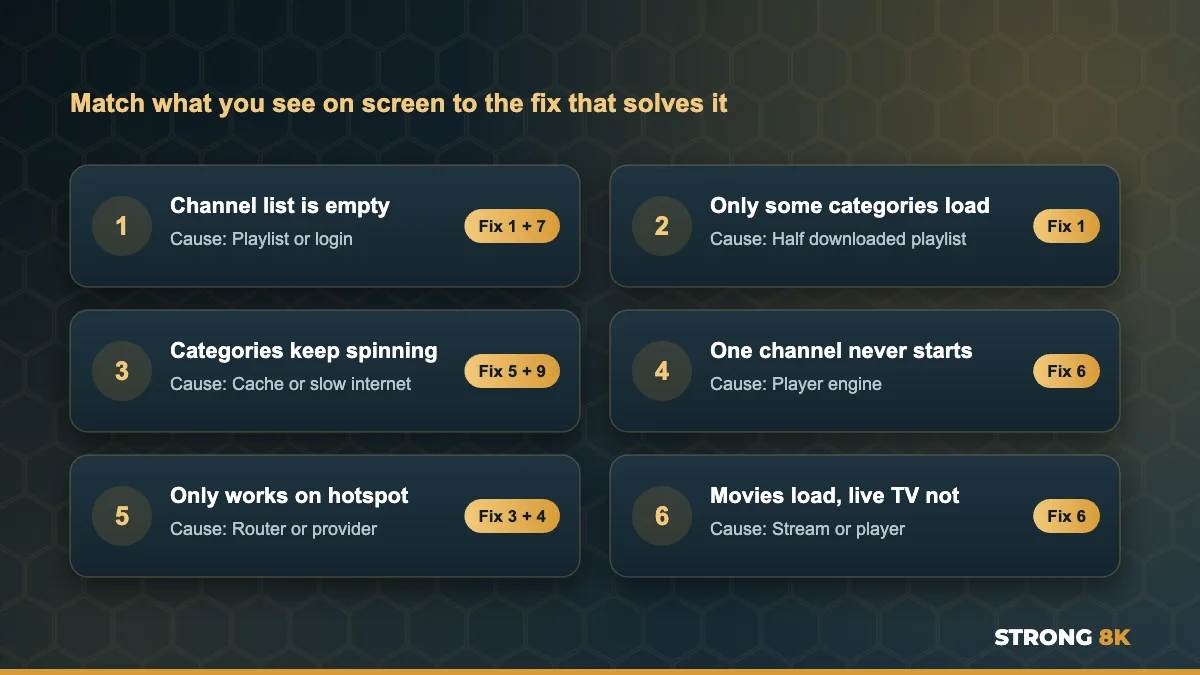
Which “Not Loading” Problem Do You Have?
“Not loading” can mean several different things, and each one has a different fix. Find the line that matches what you see, then jump to that fix.
| What you see | Most likely cause | Go to |
|---|---|---|
| Channel list is completely empty | Playlist did not download, or login problem | Fix 1 and Fix 7 |
| Only some categories load | Playlist only half downloaded | Fix 1 |
| Categories keep spinning | Slow connection or full app cache | Fix 5 and Fix 9 |
| One channel never starts | Player engine or that channel | Fix 6 |
| Loads on mobile data, not on home Wi-Fi | Internet provider or router blocking | Fix 3 and Fix 4 |
| Movies load but live TV does not | Live stream or player setting | Fix 6 |
1. Refresh or Reload the Playlist
When you sign in for the first time, the app downloads the full list of channels, movies and series. If the connection drops for a moment during that download, the list arrives half finished, which is why some categories are missing or the list is empty. Refreshing the playlist downloads it again from the start.
- In the Strong 8K app, open Settings and choose the option to reload or update the playlist
- In most other players, look for Refresh, Update playlist or Reload in the settings or on the playlist screen
- Wait a full minute for the list to finish, especially on older Firesticks
- If a refresh does not help, remove the playlist and add it again
2. Restart Your Device and Router Properly
Pressing the power button on the remote only puts most TVs and boxes into standby, so the memory is never cleared. Unplug your device from the power for 30 seconds. Then unplug the router for 30 seconds and wait until all its lights are steady before you open the app. On a Firestick you can also go to Settings, My Fire TV, Restart.
3. Test on a Phone Hotspot
This one test tells you where the problem is. Turn on the hotspot on your phone, connect your TV or Firestick to it, and open the app.

- Loads on the hotspot: your home router or internet provider is blocking or slowing the connection. Go to Fix 4.
- Still not loading on the hotspot: the problem is the device, the app or your login. Go to Fix 5 and Fix 7.
4. Change Your DNS
DNS is how your device finds the server. Some internet providers use DNS to block or slow streaming services, especially during big events. Changing to a public DNS such as 1.1.1.1 or 8.8.8.8 often fixes loading straight away. You can change it in the network settings of your device, or on your router so every device in the house uses it. If your provider still blocks the connection, a VPN is the next step.
5. Clear the App Cache and Free Up Storage
Old cached data and a full device are the most common reasons for categories that never stop spinning. On Firestick and Android TV go to Settings, Applications, Manage Installed Applications, choose your IPTV app, select Force stop, then Clear cache. Check that you have at least 500 MB free under Settings, My Fire TV, About, Storage, and uninstall apps you no longer use. On Smart TVs, unplugging the TV for 60 seconds does a similar job.
6. Switch the Video Player Engine
If the list loads but one channel never starts, the player inside the app may not handle that stream well. Most IPTV apps let you choose between two or three player engines in their settings, often called something like Default, Exo or IJK. Switch to a different one, then try the channel again. If it plays, keep that setting. If no player works for that channel, it may be temporarily down, so try another version of it.
7. Check Your Login and Subscription
An empty list can also mean the app connected but your account was not accepted, for example because of a typo in the server URL or an expired plan. Check that your details match your latest login message exactly. Our guide to fix Strong 8K IPTV login failed errors covers every detail to check.
8. Update or Reinstall the App
Old app versions can stop loading after a server update. Check for an update first. If there is none, uninstall the app and install it fresh, then sign in again. You can get the latest version and setup steps on the Strong 8K app (8K Pro) page.
9. Check Your Internet Speed on the TV
A slow connection can make the channel list and the TV guide take a very long time to load. Run a speed test on the TV or Firestick itself, not on your phone. As a guide, you need around 10 Mbps for HD, 15 Mbps for Full HD, 25 Mbps for 4K and 50 Mbps for 8K per screen. If your speed is low or keeps dropping, our guide on how to stop IPTV buffering shows how to improve it.
Still not loading after these fixes? Send us a photo of your screen and we will tell you what to do next.
Send a PhotoNot Loading on Specific Devices
| Device | Most common cause | First fix to try |
|---|---|---|
| Amazon Firestick | Low storage or full cache | Force stop, clear cache, free up storage |
| Samsung and LG Smart TV | TV memory full, app needs a restart | Unplug the TV for 60 seconds |
| Android TV box | Old app version | Update or reinstall the app |
| Apple TV, iPhone and iPad | Playlist not refreshed | Refresh the playlist in the app |
| MAG box | Portal not loading | Restart the box and check the portal URL |
If you are setting up again from scratch, follow our step by step guides to install IPTV on Firestick or install IPTV on Samsung Smart TV.
When It Is Not Your Setup
Sometimes the cause is on the server side, for example very busy times during big matches or short maintenance. Signs of this are that every device and every network fails at the same moment, or that only one channel is affected while everything else works. In that case there is nothing to fix at home, and our team can tell you quickly whether there is a known issue.
Send us these 4 details for the fastest help: your device, the app you use, what you see on screen, and when it started.
Chat With SupportFrequently Asked Questions
Why is my IPTV stuck on loading channels?
Usually because the playlist did not finish downloading, the app cache is full, or the connection is too slow. Refresh the playlist, clear the app cache and restart your device and router.
Why are some categories missing from my channel list?
The playlist only partly downloaded, often because the connection dropped during the first load. Refresh or reload the playlist and give it a full minute to finish.
Why does IPTV load on my phone but not on my TV?
If it loads on mobile data or a hotspot but not on home Wi-Fi, your router or internet provider is likely blocking or slowing the connection. Change the DNS or use a VPN.
Does a VPN fix IPTV not loading?
It can, if your internet provider is blocking or slowing the service. If the problem is a full cache or an old app, a VPN will not help.
How long should the channel list take to load?
Usually a few seconds to a minute on the first load. Older Firesticks and slow connections can take longer. If it never finishes, try the fixes in this guide.
Get Back to Watching
Most loading problems are solved with a playlist refresh, a proper restart and a quick hotspot test. For other errors, such as login, black screen or playback messages, see our complete Strong 8K IPTV not working guide, or contact Strong 8K IPTV support. New to Strong 8K? Test it on your own device first with a 24 hour IPTV free trial.