
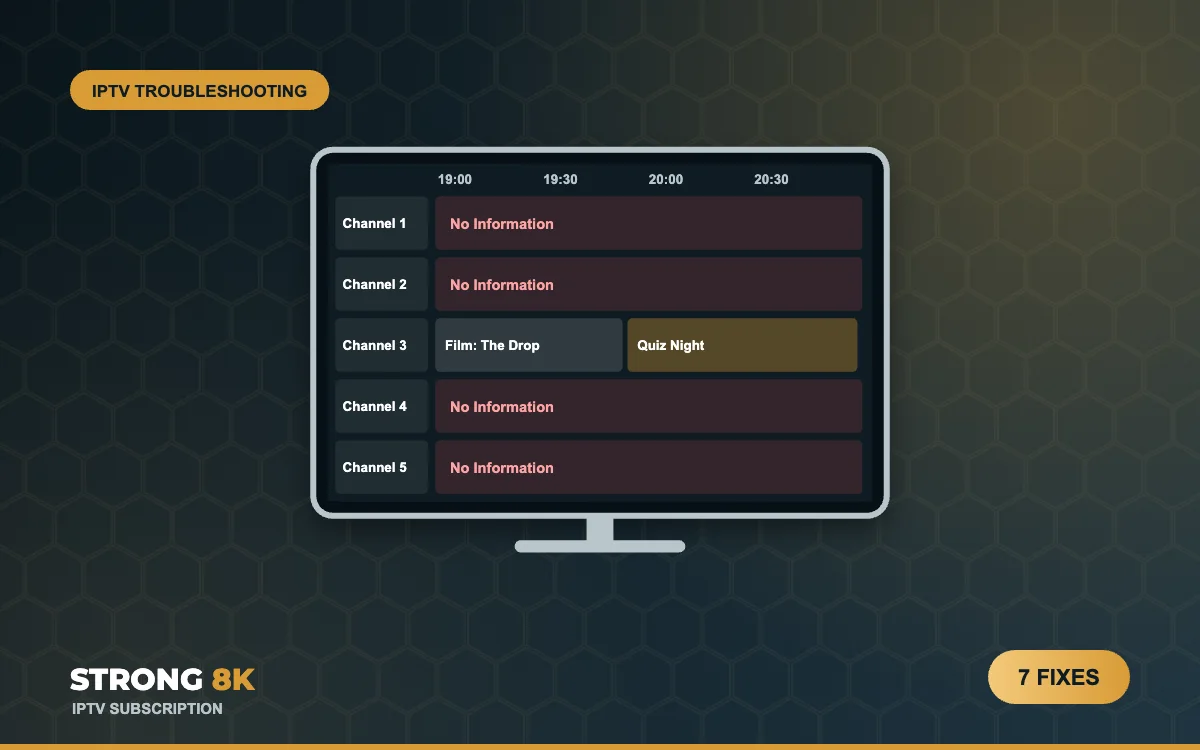
Strong 8K IPTV TV Guide (EPG) Showing “No Information”? How to Fix It
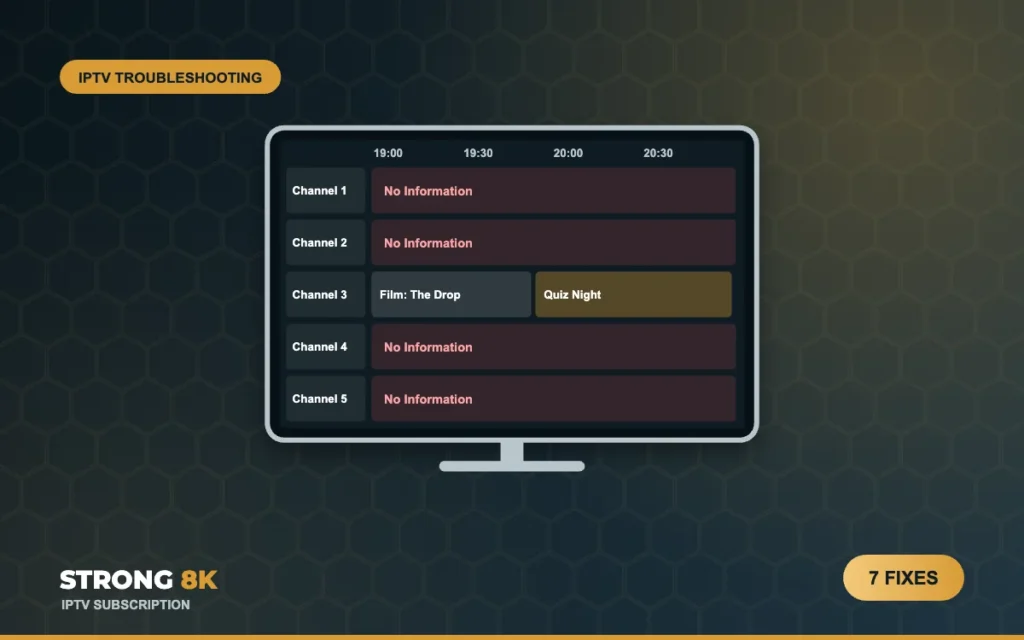
The channels play perfectly, but when you open the TV guide every row says “No Information”, or the programme listed is not the one on screen. The TV guide, often called the EPG (Electronic Programme Guide), is downloaded separately from the channels, so it can go missing or out of date while everything else works. The good news is that it is almost always fixed from the app settings in a couple of minutes.
Quick answer: open the app settings and choose Update or Refresh EPG, then give it a few minutes to download. If programme times are an hour out, change the EPG time shift setting. If only a few small channels show No Information, those channels may not carry guide data.
Why the TV Guide Shows No Information
| What you see | Most likely cause | Go to |
|---|---|---|
| Every channel says No Information | The guide has not downloaded yet or needs refreshing | Fix 1 and Fix 2 |
| Guide was fine, now it is empty | The guide data expired and has not updated | Fix 2 and Fix 3 |
| Programmes are an hour early or late | Time zone or time shift setting | Fix 4 |
| Only some small channels are empty | Those channels do not carry guide data | Fix 6 |
| Guide works on one app but not another | Login type or EPG link in that app | Fix 5 |
1. Give the Guide Time to Download
A full TV guide covers hundreds of channels for several days, so it is a large download. After you first sign in, or after clearing the app data, the channels can appear before the guide has finished. Leave the app open on a channel for two to five minutes, then open the guide again. Older Firesticks can take a little longer.
2. Refresh the EPG in the App Settings
Every IPTV app has an option to download the guide again. The name varies: Update EPG, Refresh EPG, Reload EPG or Update TV Guide.
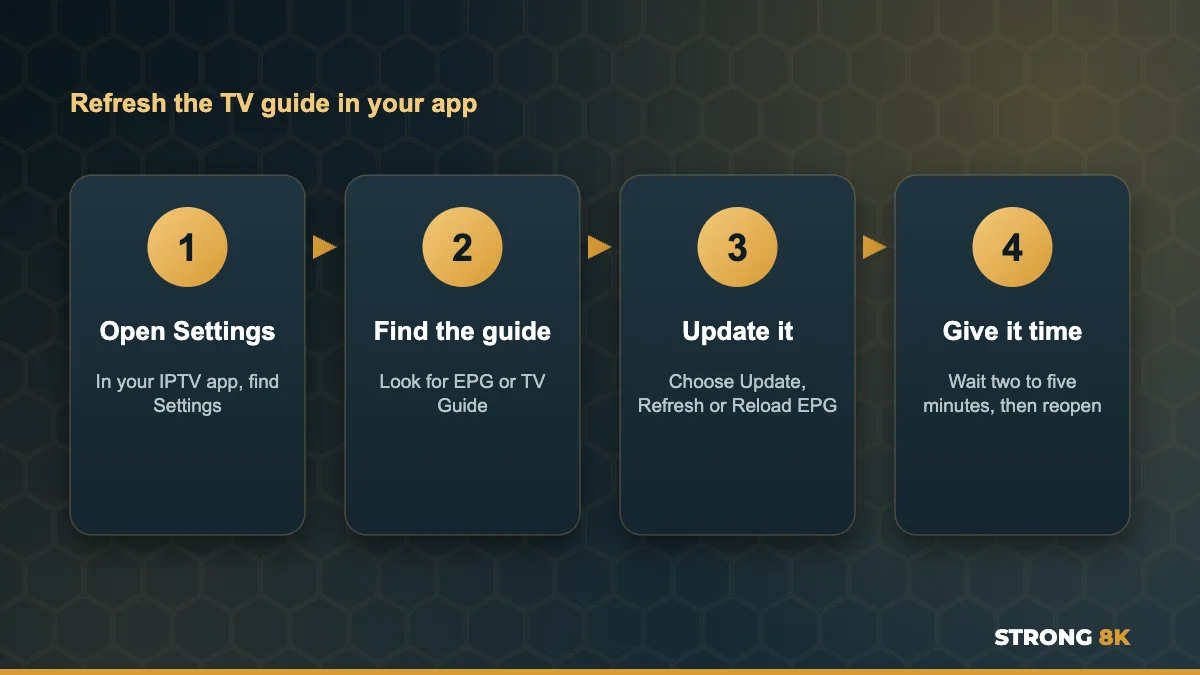
Many apps also let you choose how often the guide updates automatically. Setting it to update once a day keeps listings current without slowing the app.
3. Clear the App Cache and Restart
A damaged guide file can stop new data loading. On Firestick and Android TV go to Settings, Applications, Manage Installed Applications, choose your IPTV app, then Force stop and Clear cache. Restart the device from the power, open the app and refresh the EPG again.
Guide still empty after a refresh? Tell us your app and device, and we will tell you exactly which setting to change.
Ask Our Team4. Fix Guide Times That Are an Hour Out
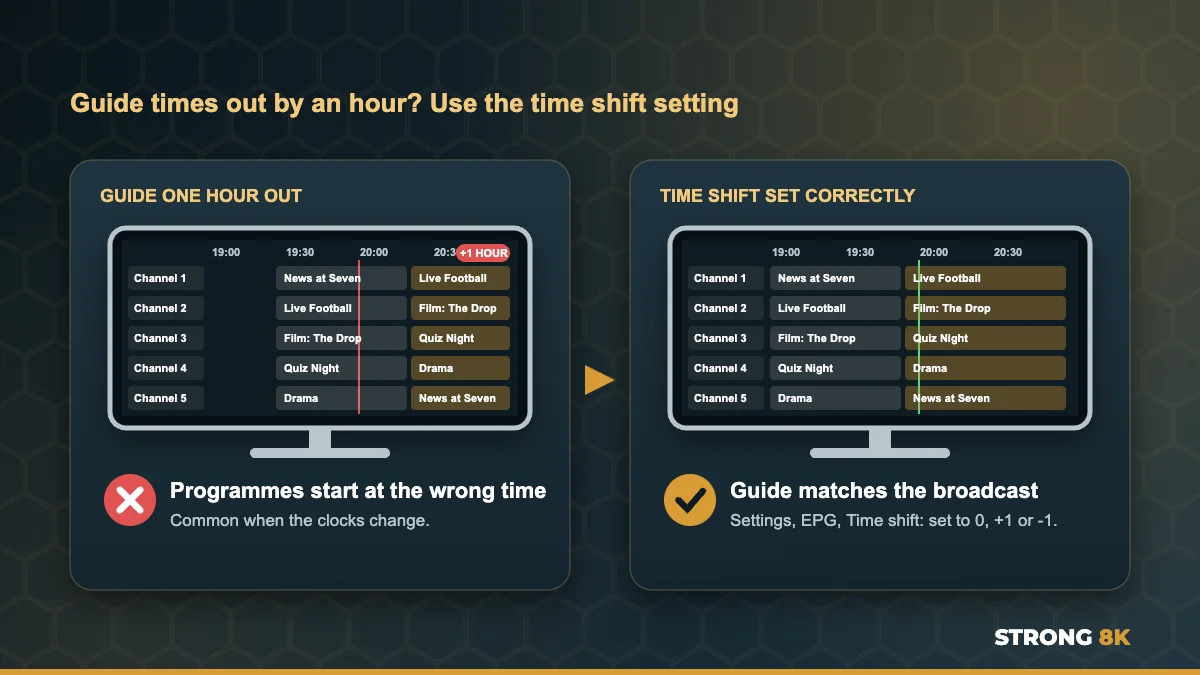
If the guide shows programmes but they start an hour early or late, the guide is fine and only the time is off. This often happens when the clocks change between GMT and BST.
- First check the date, time and time zone on the device itself are correct and set to automatic
- In the app, open Settings, then EPG or TV Guide, and look for Time shift, EPG offset or Timeshift
- Set it to 0, +1 or -1 until the listings match what is on screen
5. Check the Login Type
When you sign in with Xtream Codes (server URL, username and password), the app downloads the guide automatically. If you added Strong 8K as an M3U playlist link instead, some apps need a separate EPG link before they can show listings. If your app has an EPG URL field and it is empty, either switch to the Xtream Codes login or ask our team for the EPG link. Our guide to fix Strong 8K IPTV login failed errors explains the login types.
6. Some Channels Have No Guide Data
A small number of channels, such as some local, event or pop up channels, do not carry guide information from the broadcaster. If most of your guide works and only a few channels are empty, that is normal and the channels themselves still play.
7. Try the Strong 8K App
If the guide keeps failing in one player, test it in the free Strong 8K app (8K Pro), where the guide is set up for you automatically with our service. Our list of the best IPTV player apps for Firestick also notes which players have the fastest guides.
EPG Settings in Popular Apps
| App | Where to refresh the guide | Time shift setting |
|---|---|---|
| Strong 8K app | Settings, TV Guide | Set up automatically |
| TiviMate | Settings, EPG, Update EPG | EPG offset in playlist settings |
| IPTV Smarters | Settings, EPG, Refresh | EPG time shift in settings |
| IBO Player | Settings, Reload, or reload the playlist | Time offset in settings |
Menu names change between app versions, so look for similar wording if yours is slightly different. If your channels themselves will not load, see our guide on Strong 8K IPTV not loading.
Frequently Asked Questions
Why does my IPTV guide say No Information?
The guide has not downloaded yet, needs refreshing, or the channel does not carry guide data. Refresh the EPG in the app settings and wait a few minutes.
How do I update the EPG on IPTV?
Open the app settings, find EPG or TV Guide, and choose Update, Refresh or Reload. Then give it two to five minutes to download.
Why is my TV guide one hour out?
The time zone or EPG time shift is off, often after the clocks change. Set the device time to automatic and adjust the EPG time shift to 0, +1 or -1.
Do I need an EPG link for Strong 8K?
Not with the Xtream Codes login, which loads the guide automatically. An M3U login in some apps needs a separate EPG link, which our team can send you.
Does a missing guide mean my channels will stop?
No. The guide is separate from the channels. Channels keep playing even when the guide is empty.
Get Back to Watching
Refresh the EPG, give it a few minutes, and set the time shift if the times are off. That fixes almost every empty or wrong TV guide. For other problems, see our complete Strong 8K IPTV troubleshooting guide, or contact Strong 8K IPTV support.