
New Fire TV Stick Won’t Install IPTV Apps? Vega OS Explained
You bought a new Fire TV Stick, opened Downloader or searched for your IPTV player, and nothing works. The app is missing, the install fails, or you see a message saying the installation is not authorised. You have not done anything wrong. Since late 2025 Amazon has been moving its newer Fire TV Sticks to a new system called Vega OS, and those devices cannot install apps from outside the Amazon Appstore at all. A separate block has also hit some Fire TV smart TVs. This guide shows you how to tell which problem you have, and what you can do about it today.
Quick answer: go to Settings, then My Fire TV, then About. If the device shows a Vega OS version, sideloading is not possible and no setting will turn it on. Return the stick if you are still inside the return window, or use a device that still runs Fire OS or Android TV. If your device runs Fire OS but shows “Unauthorized APK Installation Detected”, it is a server side block from Amazon and you need to contact Amazon support with your serial number.
What Is Vega OS and Why It Matters for IPTV
For years every Fire TV ran Fire OS, a version of Android. That is why you could install Downloader, type a code and add almost any IPTV player. Vega OS is Amazon’s own Linux based system. It is faster on cheap hardware and uses less memory, but it does not run Android apps. Apps must be rebuilt for Vega and published in the Amazon Appstore, and there is no “Install unknown apps” option to switch on.
For IPTV users this changes everything. Popular players that were only ever installed by sideloading simply do not exist on Vega. Even apps you used for years on an older stick may not be available on the new one.
Which Fire TV Devices Are Affected
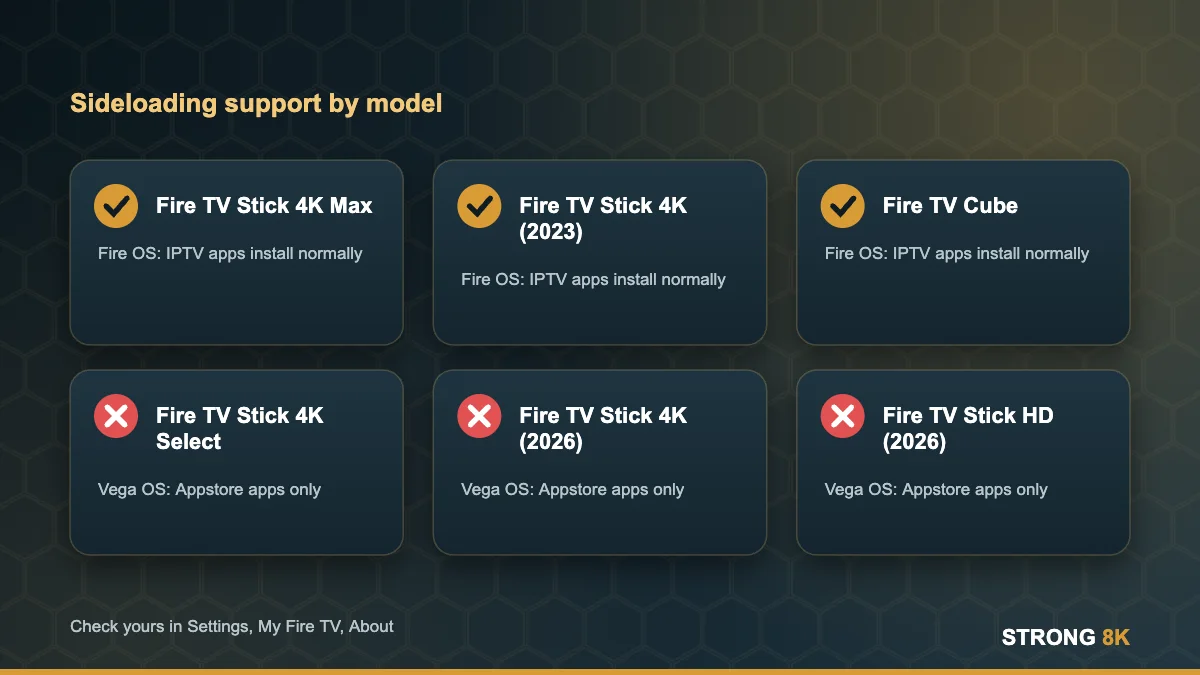
| Device | System | Can you sideload IPTV apps? |
|---|---|---|
| Fire TV Stick 4K Select (2025) | Vega OS | No |
| Fire TV Stick HD, 2nd generation (2026) | Vega OS | No |
| Fire TV Stick 4K, 3rd generation (autumn 2026) | Vega OS 2.0 | No |
| Fire TV Stick 4K Max (2nd generation) | Fire OS | Yes |
| Fire TV Stick 4K, 2nd generation (2023) | Fire OS | Yes |
| Fire TV Stick HD, 1st generation (2024) | Fire OS | Yes |
| Fire TV Cube (3rd generation) | Fire OS | Yes |
| Smart TVs with Fire TV built in | Fire OS | Usually yes, see the TCL note below |
The trap is the name. The new 3rd generation Fire TV Stick 4K looks almost the same as the 2nd generation model and carries the same name, but it runs Vega OS with 1GB of memory. If a guide or a friend told you “get the Fire TV Stick 4K”, check which generation you actually received.
How to Check Which System Your Fire TV Runs
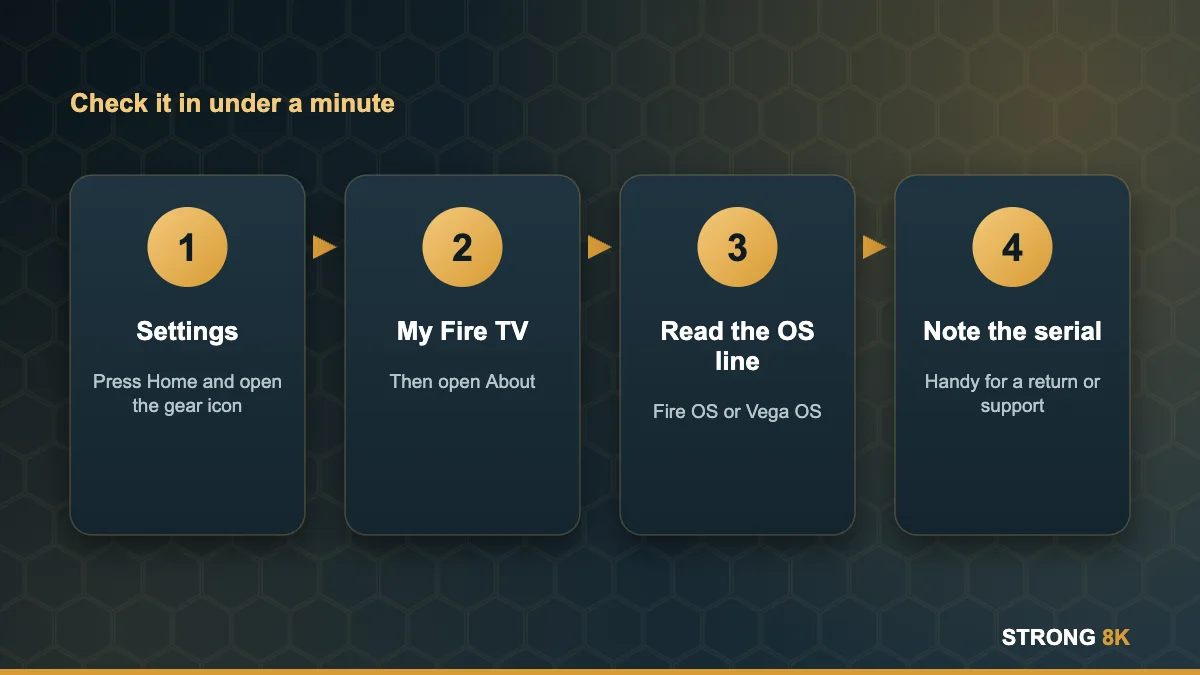
- Press Home on the remote and open Settings (the gear icon).
- Open My Fire TV, then About.
- Look at the software or OS line. Fire OS devices show “Fire OS” with a version such as 7 or 8. Vega devices show a Vega OS version.
- Note the model name and serial number on the same screen. You need them for a return or a support chat.
A faster clue: on a Fire OS device you will find Developer options under My Fire TV, with an “Install unknown apps” setting. On a Vega device that option is not there.
The Other Block: “Unauthorized APK Installation Detected”
Since April 2026 some owners of Fire TV smart TVs, mainly TCL models including UK sets, have reported a different problem. The TV runs normal Fire OS, but every sideloaded app is blocked with the message “Unauthorized APK Installation Detected”. Some people lost apps they had used for a long time.
This block sits on Amazon’s servers and is linked to the device serial number, so a factory reset does not remove it. The only route that has helped some users is contacting Amazon support with the serial number from Settings, My Fire TV, About, and asking for the device to be reviewed. If you bought the TV second hand, ask the seller for proof of purchase first, because support may ask for it.
Not sure if your device can run Strong 8K? Send us the model name and we will tell you in minutes.
Check my deviceYour Options If You Have a Vega Device
1. Return or exchange it
If you bought it recently, this is the cleanest fix. Amazon UK normally allows returns within 30 days of delivery for most items; check the exact window on your order page. Exchange it for a model that still runs Fire OS, such as the Fire TV Stick 4K Max, or for a Google TV device.
2. Use the apps on your smart TV
Many Samsung, LG, Hisense and Sony TVs can run IPTV players directly. Our guides for Samsung, LG and Hisense and TCL show which apps to use.
3. Look for a player in the Amazon Appstore
Some IPTV players are being rebuilt for Vega and listed in the Appstore. Search the store on your device. If a player you trust is listed, you can install it normally and log in with your details. If nothing suitable is listed, do not pay for a random app hoping it works.
4. Move the stick to a second TV
A Vega stick is still fine for Netflix, Prime Video and other mainstream apps. Use it on a bedroom TV and put a Fire OS or Android TV device on the TV where you watch IPTV.
How to Avoid Buying a Vega Stick by Mistake
- Read the generation in the listing, not just the name. “Fire TV Stick 4K” alone is not enough.
- Check the memory. The Vega 4K sticks have 1GB of RAM; the 4K Max has 2GB.
- Look for “Vega OS” in the product details or the Q&A section.
- For second hand sticks, ask the seller for a photo of the Settings, My Fire TV, About screen before you pay.
- When in doubt, choose the Fire TV model we recommend for IPTV or an Android TV box.
Once you have a compatible device, setup takes a few minutes with our Firestick install guide and the Strong 8K app. You can test everything first with a free trial before you pay for a plan.
Got a device that works? Try Strong 8K free and check the picture on your own TV first.
Get my free trialFrequently Asked Questions
Can I enable sideloading on a Vega OS Fire TV Stick?
No. Vega OS does not run Android apps and has no option to install unknown apps. Only apps published in the Amazon Appstore for Vega can be installed.
Does the Fire TV Stick 4K Max still support Downloader?
Yes. The Fire TV Stick 4K Max runs Fire OS, so you can enable Developer options, allow Downloader to install unknown apps and add IPTV players as before.
How do I know if my Fire TV Stick 4K is the new Vega model?
Open Settings, My Fire TV, About. The 3rd generation Fire TV Stick 4K from autumn 2026 shows a Vega OS version and has 1GB of RAM. The 2nd generation from 2023 shows Fire OS.
Will a factory reset fix “Unauthorized APK Installation Detected”?
No. That block is applied by Amazon to the device serial number. Contact Amazon support with the serial number and ask for a review.
Can I still watch Strong 8K on a Vega device?
Only if a compatible player is available in the Amazon Appstore for that device. Otherwise use a smart TV app, a Fire OS device or an Android TV box. Message us with your model and we will check it for you.
More Strong 8K guides
Read next: which Firestick to buy for IPTV, the best device for IPTV, the Firestick parse error fix and the Strong 8K troubleshooting hub. Browse all IPTV guides, or contact our support team if you need help. Running your own IPTV business? See our reseller panel.