
IPTV Smarters Not Working With Strong 8K? Why and How to Fix It
Your Strong 8K login works in one app, but when you add it to IPTV Smarters you get “Authorization failed”, an endless loading screen, or channels that refuse to play. It is a question our support team hears every week, and the answer is reassuring: when the same details work somewhere else, your account is fine. The problem is in how the details were entered in Smarters, or in the version of Smarters you are using.
Quick answer: in Smarters choose Login with Xtream Codes API, type the URL as http:// followed by the server and port only, and check for hidden spaces. Make sure you have an up to date, official copy of the app. If it still fails, test the same details in the free Strong 8K app.
Does IPTV Smarters Work With Strong 8K?
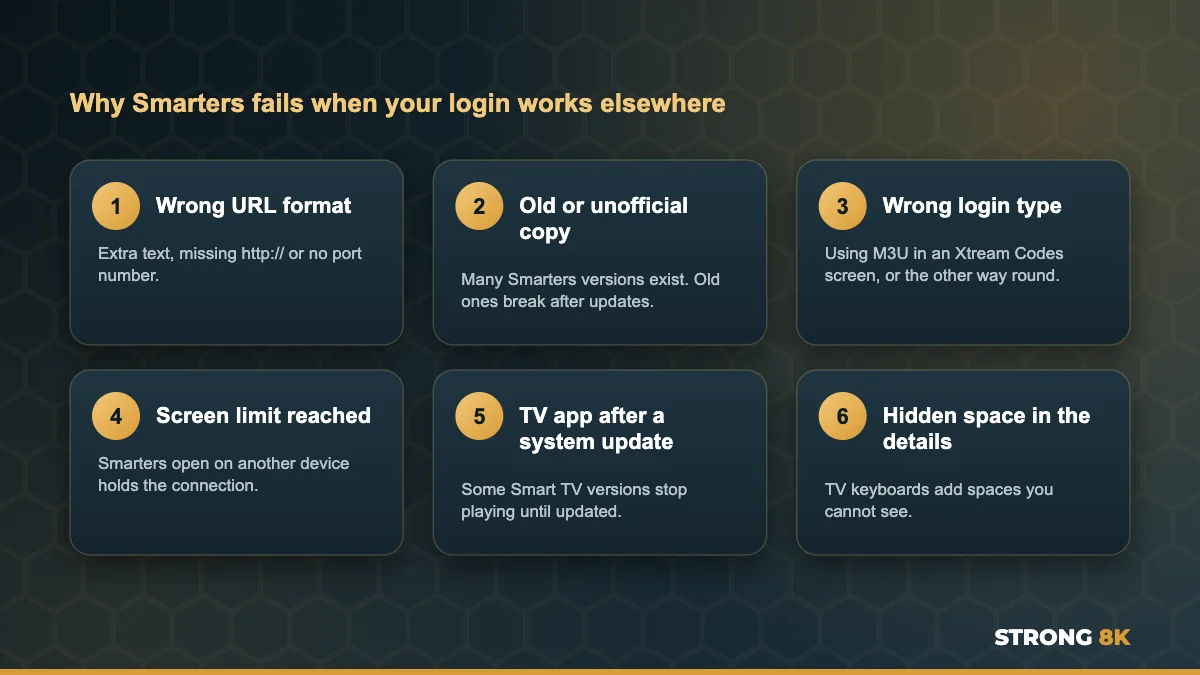
Yes. Strong 8K uses standard Xtream Codes and M3U logins, which IPTV Smarters supports. Many of our customers use it every day. What makes Smarters tricky is that there are many versions of it, from different sources and for different devices, and its login screen is strict about the format of the URL. Once those two things are right, it works well.
1. Use the Right Login Screen
Smarters offers several ways to add a playlist. For Strong 8K, choose Login with Xtream Codes API. It asks for four details: Any name (type anything, such as Strong 8K), Username, Password and URL. Only use Load Your Playlist or File/URL if you are adding an M3U link, and never paste the M3U link into the Xtream Codes URL field.
2. Enter the URL in the Right Format
This is the cause of most Smarters login errors. The URL field wants only the server address and port, exactly as written in your Strong 8K login message.
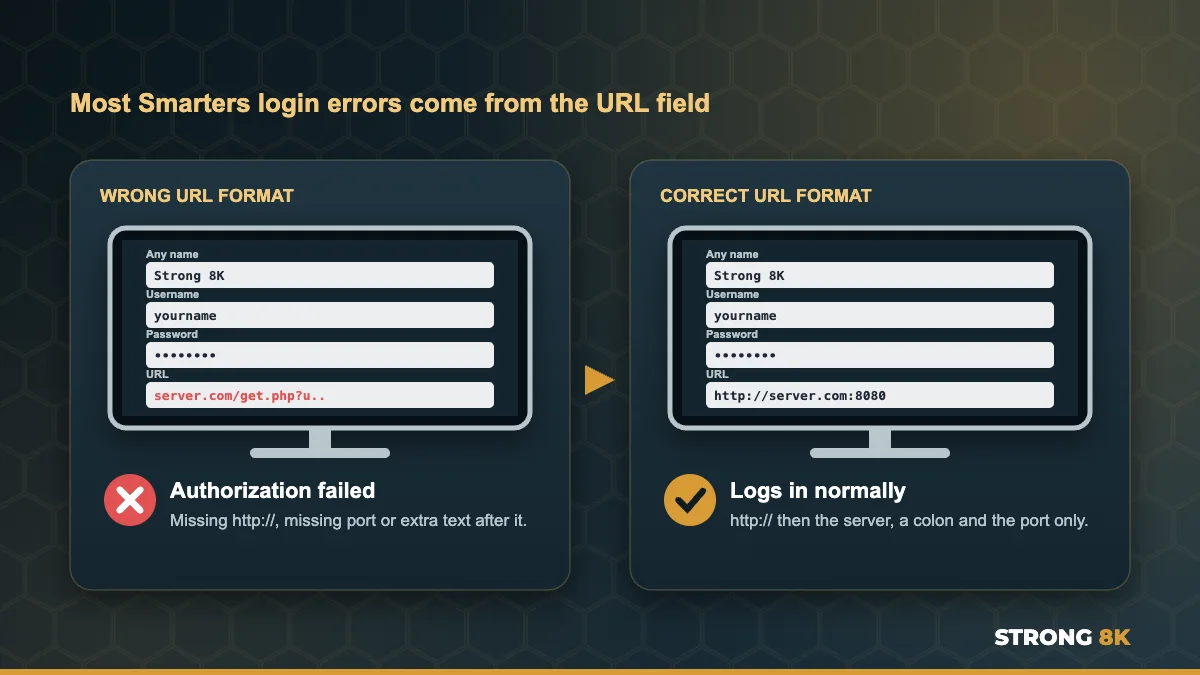
- Start with http:// (not https:// unless your details say so)
- Then the server name, a colon and the port number, for example :8080
- Nothing after the port: no slash, no get.php and no username in the URL
- No spaces before or after
3. Check for Hidden Spaces and Capitals
TV keyboards often add a space after a word, and you cannot see it on screen. Usernames and passwords are also case sensitive. Delete each field completely, type it again slowly, and move the cursor to the end to check there is no space. Our guide to fix Strong 8K IPTV login failed errors has a full checklist.
Not sure what goes in each Smarters field? Send us a photo of the login screen and we will tell you exactly what to type.
Get Login Help4. Make Sure You Have an Official, Up to Date Copy
Because Smarters is so popular, there are many old copies and lookalike versions online. An outdated or unofficial copy is a common reason for login errors and crashes, especially after a device update. Uninstall the version you have, install the current official app for your device, and add your login again.
5. Close Smarters on Your Other Devices
If Smarters is open on a phone or another TV, it may still be holding a connection. On a one device plan, the next device is then refused, which some versions show as an authorization error. Close the app fully on every other device, wait a minute and try again. If more people watch at once, here is how to watch IPTV on two TVs at the same time.
6. Update the App on Smart TVs
Smart TV versions of Smarters can stop playing channels or movies after a TV system update. Samsung owners in particular have reported movies stopping after Tizen updates. Update the app from the TV app store, or reinstall it. If the TV app keeps failing, a Firestick or Android box often runs it more reliably.
7. Clear the App Cache or Data
On Firestick and Android TV, go to Settings, Applications, Manage Installed Applications, select Smarters, then Force stop and Clear cache. If that does not help, Clear data resets the app completely, so you will need to add your login again.
8. Test the Same Login in the Strong 8K App
This one test settles it. Install the free Strong 8K app (8K Pro) and sign in with the same details. If it works there, your account is fine and Smarters is the problem. Many customers simply keep the Strong 8K app, because it has no activation fee, no website step and full support from our team. You can also compare other players in our list of the best IPTV player apps for Firestick.
Common Smarters Messages and What They Mean
| Message in Smarters | What it usually means | Fix |
|---|---|---|
| Authorization failed | URL, username or password not accepted | Fix 2 and Fix 3 |
| Invalid username or password | Typo, space or wrong capitals | Fix 3 |
| Stuck on loading or downloading | Large playlist or slow connection | Fix 7, then restart the router |
| Channels play, movies do not | App version or TV update | Fix 4 and Fix 6 |
| Works on phone, not on TV | Details typed differently on the TV | Fix 3 and Fix 6 |
If Smarters says it cannot connect at all, follow our guide to fix Strong 8K IPTV no connection errors.
Still stuck with Smarters? Send your device, the Smarters version and a photo of the error, and we will get you watching.
Chat With SupportFrequently Asked Questions
Does IPTV Smarters work with Strong 8K IPTV?
Yes. Use Login with Xtream Codes API and enter the URL as http:// followed by the server and port only. Make sure you have an up to date, official copy of the app.
Why does my login work in another app but not in Smarters?
Usually the URL is in the wrong format, there is a hidden space, or the Smarters version is old. Your account is fine if the same details work elsewhere.
What do I put in the Any name field?
Anything you like, such as Strong 8K. It is only a label for the playlist and does not affect the login.
Should I use Xtream Codes or M3U in Smarters?
Xtream Codes is easier to type correctly and loads the TV guide automatically. Use M3U only if you have the full M3U link.
Is there an easier app than Smarters for Strong 8K?
The free Strong 8K app (8K Pro) takes your login directly, has no activation fee and is supported by our team.
Get Back to Watching
Choose the Xtream Codes login, type the URL with http:// and the port only, and use an up to date copy of the app. That fixes almost every Smarters problem. For other errors, see our complete Strong 8K IPTV troubleshooting guide, or contact Strong 8K IPTV support. New to Strong 8K? Try it with a 24 hour IPTV free trial.