
No Connection, Playlist Is Not Working on Strong 8K IPTV? How to Fix It

You open your IPTV app and, instead of channels, a box says “No Connection! Playlist is not working.” It looks like your playlist is broken, but it usually is not. This message means the app could not reach the server at all. Your Strong 8K subscription and your playlist are almost always fine. Something between your TV and the server is stopping the connection, and you can usually find it in a few minutes.
Quick answer: restart your router and TV from the power, check that the date and time on your TV are correct, then test on a phone hotspot. If it works on the hotspot, change your DNS to 1.1.1.1 or 8.8.8.8 and turn off any web filter on your broadband.
What “No Connection” Really Means
Every time the app opens, it sends a request to the server and waits for a reply. “No Connection” means no reply came back. That is different from a login error, where the server does reply but refuses your details. Knowing which one you have saves a lot of time.
| Message | What happened | Where the problem is |
|---|---|---|
| No Connection! Playlist is not working | The app never reached the server | Your internet, router, DNS or provider |
| Login Failed | The server replied but rejected the details | Server URL, username or password |
| All playlists failed to load | The playlist was added wrongly or is out of date | How the playlist was added to the app |
If your message is a login error, our guide to fix Strong 8K IPTV login failed is the right place to start. If it is “All playlists failed to load” on IBO Player, see our fixes for a Strong 8K IPTV playlist not loading on IBO Player.
Find the Break: The Connection Ladder
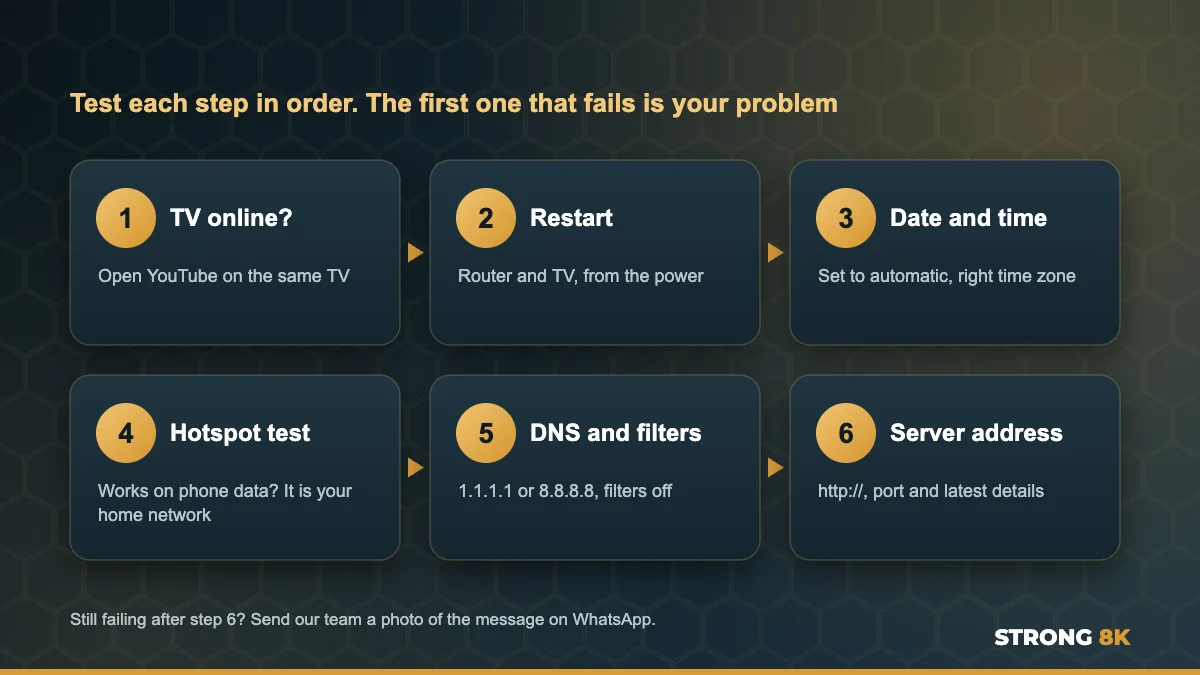
Your TV reaches the server through a chain: the TV, your Wi-Fi or cable, your router, your internet provider, and finally the server. Test each step in order. The first step that fails is where the problem is, and the fixes below follow the same order.
1. Check the TV Is Actually Online
Open YouTube or any other streaming app on the same TV. If nothing loads there either, the TV has no internet, and the IPTV app cannot work until it does. Most Smart TVs also have a network test: on Samsung go to Settings, General, Network, Network Status, and on LG go to Settings, Network, then Wi-Fi or Wired connection. On Firestick, go to Settings, Network and press Play/Pause on your network to check its status.
2. Restart the Router and TV From the Power
Unplug the router for 30 seconds and wait until its lights are steady. Then unplug the TV or Firestick for 30 seconds as well. The power button on the remote only puts most devices into standby, so a full unplug matters. This gives the TV a fresh network address and clears a stuck connection, which fixes this error more often than anything else.
3. Set the Correct Date, Time and Time Zone
This is the fix most guides miss. Many app connections are secure, and a secure connection checks the date on your device. If your TV clock is wrong, for example after a power cut or a factory reset, the check fails and the app shows “No Connection” even though your internet works perfectly.

- Open your TV settings and find Date and Time (on Samsung it is under General, System Manager, Time)
- Turn on automatic time, or set the date, time and time zone by hand
- Restart the TV and open the app again
4. Test on a Phone Hotspot
Turn on the hotspot on your phone and connect the TV to it. Open the app. If the playlist loads on the hotspot but not on your home internet, your router or broadband provider is blocking the connection, so go to Fix 5 and Fix 6. If it still says “No Connection” on the hotspot, the problem is on the TV itself or the server address, so go to Fix 3 and Fix 8. We explain this test in more detail in our guide on Strong 8K IPTV not loading.
5. Change Your DNS
DNS is how your TV turns the server name into an address it can reach. Some internet providers use their DNS to block or slow streaming servers. Change the DNS on your TV, or better on your router so every device benefits, to a public DNS such as 1.1.1.1 (Cloudflare) or 8.8.8.8 (Google). On most TVs this is in the network settings under IP or DNS settings, set to manual.
Still seeing No Connection? Send us a photo of the message and the name of your internet provider, and we will tell you what to change.
Get Help Now6. Turn Off Web Filters on Your Broadband
Many UK broadband providers switch on a family or security filter by default, and some routers have their own parental controls. These filters can block IPTV servers without telling you. Log in to your broadband account or router settings and look for the options in the table below.
| Provider | Setting to look for |
|---|---|
| BT | BT Parental Controls and Web Protect |
| Sky | Sky Broadband Shield |
| Virgin Media | Web Safe and Child Safe |
| TalkTalk | HomeSafe |
| Any router | Parental controls, content filter or blocked sites list |
Turn the filter off, or add an exception if your provider allows it, then restart the router and test again. Setting names can change over time, so if you cannot find it, search your provider name with “turn off web filter”.
7. Try a VPN
If the hotspot works but your home internet still blocks the connection after changing DNS, your provider may be blocking at network level, which often happens during big football matches. A reputable VPN app on your Firestick, Android TV or router hides the connection from that block. A VPN can also help with evening buffering, as we explain in our guide on how to stop IPTV buffering.
8. Check the Server Address
If nothing reaches the server even on a hotspot, check the server URL saved in the app. It must match your latest Strong 8K login message exactly, including http:// (not https:// unless your details say so) and the port number at the end. If you renewed your plan or received new details, the old server address may no longer work.
9. Re-Add the Playlist
Once your connection works again, a playlist that failed to download can stay broken until it is added again. Delete it and add it fresh, then reload the app. On IBO Player and similar apps, this is done on the app website using your MAC address and device key.
When It Is the Server, Not You
Very rarely, the cause is on our side, such as short maintenance. The sign is that every device, every app and every network fails at the same moment, including a phone on mobile data. If you see that, message our team and we will tell you straight away whether there is a known issue and when it will be fixed.
An Easier Option
The free Strong 8K app (8K Pro) is built for our servers and gives clearer error messages, so it is easier to tell a connection problem from a login problem. If you are not a customer yet, you can test the connection on your own home internet with a 24 hour IPTV free trial before you choose a plan.
Want us to check it with you? Send your device, app name and a photo of the error, and our team will walk you through the fix.
Chat With SupportFrequently Asked Questions
What does No Connection, playlist is not working mean?
It means the app could not reach the server at all. Your playlist and subscription are usually fine. The block is somewhere in your internet connection, router, DNS or broadband filter.
Why does IPTV work on my phone but say No Connection on my TV?
If your phone is on mobile data, it uses a different network. Your home broadband or router is likely blocking the server. Change the DNS, turn off broadband web filters or try a VPN.
Can a wrong date on my TV cause No Connection?
Yes. Secure connections check the date on your device. If the TV clock is wrong, the connection fails. Set the date and time to automatic and restart the TV.
Will changing DNS fix No Connection?
Often, yes. If your provider blocks the server through its own DNS, switching to 1.1.1.1 or 8.8.8.8 lets the TV reach it again.
Is No Connection a problem with my Strong 8K subscription?
Almost never. An expired account usually shows a login error instead. If you are not sure, message our team and we will check your account.
Get Back to Watching
Work down the connection ladder and stop at the first step that fails: TV online, router restart, date and time, hotspot, DNS, filters, VPN and server address. One of them fixes almost every “No Connection” message. For other errors, see our complete Strong 8K IPTV troubleshooting guide, or contact Strong 8K IPTV support.