
Strong 8K IPTV Black Screen? How to Fix It (With or Without Sound)
The channel name appears, you can hear the commentary, but the screen stays black. Or the whole app opens to a blank screen and nothing happens at all. A black screen is one of the most common problems our customers report, and it is rarely a fault with your Strong 8K subscription. In most cases the player on your device is struggling with the video, and a quick settings change brings the picture back.
Quick answer: try a different channel first. If others play, switch the video decoder in the app settings (hardware to software, or the other way round) and choose the HD version of the channel instead of 4K. If every channel is black, restart the device from the power and clear the app cache.
What Your Black Screen Is Telling You
Not every black screen has the same cause. What you hear and which channels are affected point straight to the right fix, so check this first.
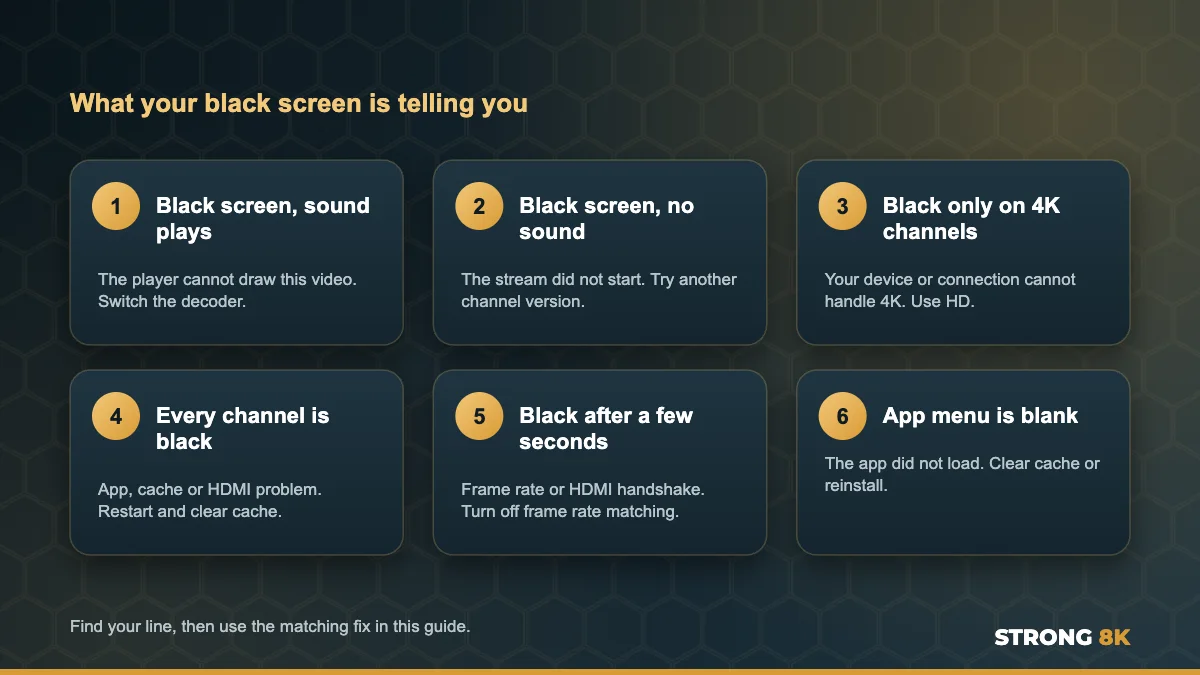
| What you see and hear | Most likely cause | Go to |
|---|---|---|
| Black screen, but sound plays | The player cannot decode this video format | Fix 2 |
| Black screen, no sound, spinning | The stream has not started | Fix 1 and Fix 6 |
| Black only on 4K or UHD channels | Device or internet cannot handle 4K | Fix 3 |
| Every channel is black | App, cache or HDMI problem | Fix 4 and Fix 5 |
| Picture appears, then goes black after a few seconds | Frame rate switching or HDMI handshake | Fix 7 |
| The app itself opens to a blank screen | App did not load properly | Fix 5 and Fix 8 |
1. Test Another Channel and Another Version
Start with the simplest check. Play two or three other channels from different categories. If they work, your account, internet and device are fine, and the problem is that one stream. Many channels are listed in more than one quality, such as FHD, HD and SD, and switching to another version usually works straight away. If one channel stays black for more than an hour, let our team know so we can check it.
2. Switch the Video Decoder
This is the fix for the classic black screen with sound. Your device decodes video in one of two ways. Hardware decoding uses the device chip and is fast, but some chips cannot handle every format. Software decoding uses the processor and is more flexible. When the sound plays but the picture does not, the decoder in use cannot draw that stream.
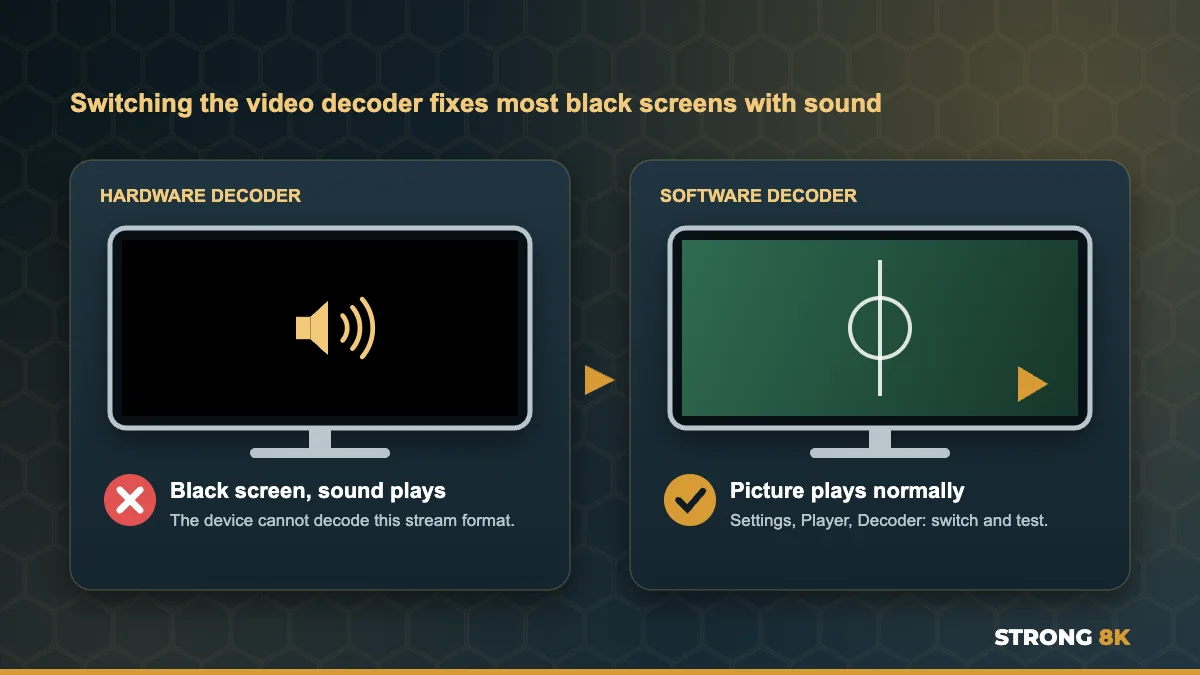
- Open the app settings and look for Player, Video player or Decoder
- Switch from Hardware (often called HW or MediaCodec) to Software (SW), or the other way round
- In apps with a choice of player engines, such as Default, Exo or VLC, try a different engine
- Go back to the channel and test again
Keep whichever setting gives you a picture. Some customers find software decoding works best on older Firesticks, while hardware decoding is smoother on newer devices, so it is worth testing both.
3. Choose HD Instead of 4K
4K channels use a newer video format and need a capable device and a steady 25 Mbps or more. Older Firestick models, some budget Android boxes and older Smart TVs cannot play every 4K stream, and the result is a black screen. If only 4K or UHD channels are black, choose the FHD or HD version of the same channel. Our guide to stop IPTV buffering shows how to check the speed your TV actually gets.
Black screen on a channel you really want to watch? Tell us the channel and your device, and we will tell you which version works best.
Ask Our Team4. Restart the Device From the Power
If every channel is black, the device memory may be full. Pressing the power button on the remote only puts most devices into standby. Unplug your Firestick, box or TV for 30 seconds, plug it back in and open the app again. On a Firestick you can also go to Settings, My Fire TV, Restart.
5. Clear the App Cache
A full or corrupt cache can stop the player from drawing anything. On Firestick and Android TV go to Settings, Applications, Manage Installed Applications, choose your IPTV app, select Force stop, then Clear cache. Your login stays saved. While you are there, check you have at least 500 MB of free storage under Settings, My Fire TV, About, Storage.
6. Check the Stream Actually Starts
A black screen with no sound and a spinning circle is usually a stream that never started, not a picture problem. That points to your connection. Test your internet speed on the TV, restart the router, and if channels load on a phone hotspot but not on home Wi-Fi, follow our guide to fix Strong 8K IPTV no connection problems.
7. Turn Off Frame Rate Matching and Check HDMI
If the picture appears for a moment and then turns black, your device may be switching the TV refresh rate, and some TVs blank the screen while they adjust. On Firestick go to Settings, Display and Sounds, Display and turn off Match Original Frame Rate, then test again. Also check the HDMI connection: push the cable in firmly, try another HDMI port on the TV, and avoid cheap extension leads. Turning the TV on before the device can also help the two agree on the picture.
8. Update or Reinstall the App
An old app version can stop showing video after a TV or Firestick system update. Check for an app update first. If there is none, uninstall the app, restart the device and install it fresh. If you use the Strong 8K app, get the latest version from the Strong 8K app (8K Pro) page.
9. Try a Different Player
Some players handle certain streams better than others. Your Strong 8K login works in several apps, so testing the same channel in a second player quickly shows whether the problem is the app. Our list of the best IPTV player apps for Firestick compares the most popular options.
Black Screen on Specific Devices
| Device | Most common cause | First fix to try |
|---|---|---|
| Firestick (older models) | 4K stream too demanding, low storage | Choose HD, clear cache, free storage |
| Firestick 4K and 4K Max | Frame rate matching blanking the screen | Turn off Match Original Frame Rate |
| Samsung and LG Smart TV | App needs a fresh start after an update | Unplug the TV for 60 seconds, update the app |
| Android TV box | Decoder setting | Switch hardware and software decoding |
| Any device on a soundbar or AV receiver | HDMI handshake | Connect the device straight to the TV to test |
Setting up a new device? Follow our step by step guides to install IPTV on Firestick or install IPTV on Samsung Smart TV.
When the Black Screen Is on Our Side
If one channel is black on every device and in every app, the problem is that stream, not your setup. You may also see a message such as “Channel will be back soon” or “No signal found”. These are usually short. Message our team with the channel name and we will check it straight away.
Still black after these fixes? Send us a photo of your screen, your device and the channel name, and we will help you fix it.
Send a PhotoFrequently Asked Questions
Why is my IPTV screen black but I can hear sound?
The player can read the audio but cannot decode the video format. Switch the video decoder in the app settings between hardware and software, or try the HD version of the channel.
Why are only 4K channels black?
4K streams need a capable device and a steady connection of about 25 Mbps. Older Firesticks and some Smart TVs cannot play every 4K stream. Choose the FHD or HD version instead.
Why does my IPTV picture go black after a few seconds?
Your device may be changing the TV refresh rate to match the video. Turn off frame rate matching in the device display settings and check the HDMI cable.
Is a black screen a problem with my Strong 8K subscription?
Rarely. If other channels play, your subscription is fine. If every channel is black, restart the device, clear the app cache and check your internet before contacting us.
What should I do if one channel is black on every device?
That stream is temporarily down. Try another version of the channel and let our team know the channel name so we can check it.
Get Back to Watching
Most black screens are fixed by switching the decoder, choosing HD instead of 4K, or a proper restart and cache clear. For other errors, see our complete Strong 8K IPTV troubleshooting guide, or contact Strong 8K IPTV support. New to Strong 8K? Test it on your own TV first with a 24 hour IPTV free trial.