

Strong 8K IPTV Play Back Error? How to Fix It

You pick a movie or a channel, the player opens, and a box says “PLAY BACK ERROR! Please contact the server provider for more information.” The wording makes it sound like the service is down, but that is usually not the case. This message is written by the app, and it appears whenever the player cannot open a video, whatever the reason. Most of the time the cause is a single title, the app cache or a player setting, and you can fix it yourself in a few minutes.
Quick answer: try a different movie or channel. If others play, the problem is that one title. If nothing plays, clear the app cache, switch the player engine or stream format in the settings, and restart your device and router.
Where the Play Back Error Comes From
The most useful thing to know is how wide the problem is. One failing title and a failing library have completely different fixes.
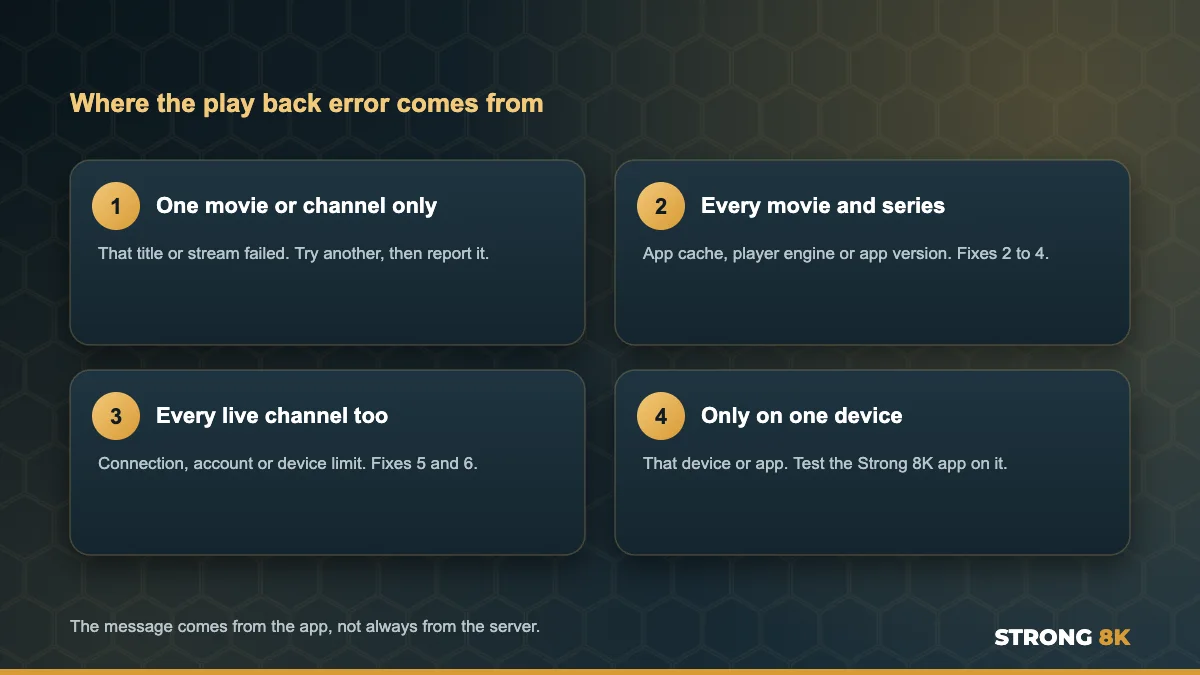
| What fails | Most likely cause | Go to |
|---|---|---|
| One movie, episode or channel | That title or stream has a problem | Fix 1 |
| Every movie and series, live TV works | App cache, player engine or stream format | Fix 2, 3 and 4 |
| Live channels and movies | Internet, account or device limit | Fix 5 and 6 |
| Only on one device | That device or app version | Fix 7 and 8 |
1. Try Another Title First
Play a different movie and a couple of live channels. If they work, your account and connection are fine, and the title you picked has a problem, for example a file that is being updated. Movies and series are stored separately from live channels, so one bad title says nothing about the rest. Send our team the title name and we will refresh it for you.
2. Clear the App Cache
A full cache is the most common reason every movie fails while live TV still works. On Firestick and Android TV go to Settings, Applications, Manage Installed Applications, choose your IPTV app, select Force stop, then Clear cache. Your login stays saved. On Smart TVs, unplugging the TV for a minute clears the app memory in a similar way.
3. Switch the Player Engine
Most IPTV apps include more than one video player, often called Default, Exo, VLC or Native. Movies come in several file formats, and one engine may open a format that another cannot. Open the app settings, find Player or Video player, choose a different engine and play the same title again. If it works, keep that setting.
4. Change the Stream Format
If every title fails, the stream format can be the cause. Some apps let you choose how video arrives, usually TS or HLS (sometimes shown as m3u8). One format may suit your device or network better than the other.

Not sure which setting to change in your app? Tell us the app name and device, and we will tell you exactly where to look.
Ask Our Team5. Restart the Device and Router
If live channels fail as well, start with a proper restart. Unplug the router for 30 seconds and wait for steady lights, then unplug your TV or Firestick for 30 seconds. The power button on the remote only puts most devices into standby. Then run a speed test on the TV itself. If the speed is low, our guide to stop IPTV buffering shows how to improve it.
6. Check Your Account and Device Limit
If your plan has expired, or the account is already playing on more screens than your plan allows, the server refuses the stream and many apps show a play back error instead of a clear message. Close the app on other TVs and phones, wait a minute and try again. If you are not sure whether your plan is active, our team can check it in a minute, or see our guide to fix Strong 8K IPTV login failed errors.
7. Turn Your VPN Off or On
A VPN can help when your internet provider blocks streaming, but a slow or overloaded VPN server can also stop video from starting. If you use a VPN, turn it off and test. If you do not use one and only your home internet fails, a VPN may be the fix, especially during big events.
8. Update the App or Test Another Player
TV and Firestick system updates sometimes stop older app versions from playing movies, and Samsung TV owners in particular have reported this after Tizen updates. Check for an app update, or uninstall and reinstall the app. The quickest test of all is to play the same title in the free Strong 8K app (8K Pro). If it plays there, your account is fine and the other app is the problem. You can also compare options in our list of the best IPTV player apps for Firestick.
Play Back Error on Specific Devices
| Device | Most common cause | First fix to try |
|---|---|---|
| Firestick | Full cache or low storage | Force stop, clear cache, free up storage |
| Samsung Smart TV | App not updated after a TV update | Update or reinstall the app |
| LG Smart TV | Player engine cannot open the format | Switch the player engine |
| Android TV box | Stream format | Switch between TS and HLS |
| iPhone, iPad and Apple TV | App version | Update the app from the App Store |
When It Is on Our Side
If one title fails for everyone, in every app, we need to fix it on our side, and we usually can quickly. Send the title name, or the channel name, and the time it happened. If you see a black screen rather than an error box, our guide to the Strong 8K IPTV black screen explains what to check.
Still seeing PLAY BACK ERROR? Send a photo of the message, the title and your device, and our team will sort it out.
Get Help NowFrequently Asked Questions
What does PLAY BACK ERROR, please contact the server provider mean?
The app could not open the video. It can be one title with a problem, a full cache, a player setting, your connection or your account. It does not always mean the service is down.
Why do movies show a play back error but live TV works?
Movies and series are stored separately from live channels. Clear the app cache, switch the player engine and try another movie. If only one title fails, our team can refresh it.
Can a VPN cause a play back error?
Yes. A slow or overloaded VPN server can stop video from starting. Turn the VPN off to test, or switch to a different server.
Does a play back error mean my subscription has expired?
Not usually. If other titles play, your subscription is active. If nothing plays in any app, ask our team to check your account.
Which app gives the fewest play back errors with Strong 8K?
The free Strong 8K app (8K Pro) is built for our service and is the quickest way to test whether the problem is your app or the title.
Get Back to Watching
Start by testing another title, then clear the cache and change the player engine or stream format. One of those fixes almost every play back error. For other problems, see our complete Strong 8K IPTV troubleshooting guide or contact Strong 8K IPTV support. New to Strong 8K? Try it on your own TV with a 24 hour IPTV free trial.