
Strong 8K IPTV Movies and Series Not Playing? How to Fix It
Live TV plays perfectly, but when you choose a movie or an episode, it sits at 00:00, plays without sound, or the Movies and Series sections are empty. Movies and series (often called VOD, short for video on demand) work differently from live channels. They are full files in many different formats rather than live streams, so a player that handles every live channel can still struggle with some films. Most of these problems are fixed with a player or audio setting.
Quick answer: if one title fails, try another and report it. If a movie is stuck at 00:00, switch the player engine in the app settings. If it plays with no sound, change the audio track. If the Movies or Series sections are empty, refresh the playlist and clear the app cache.
What Your Movie Problem Tells You
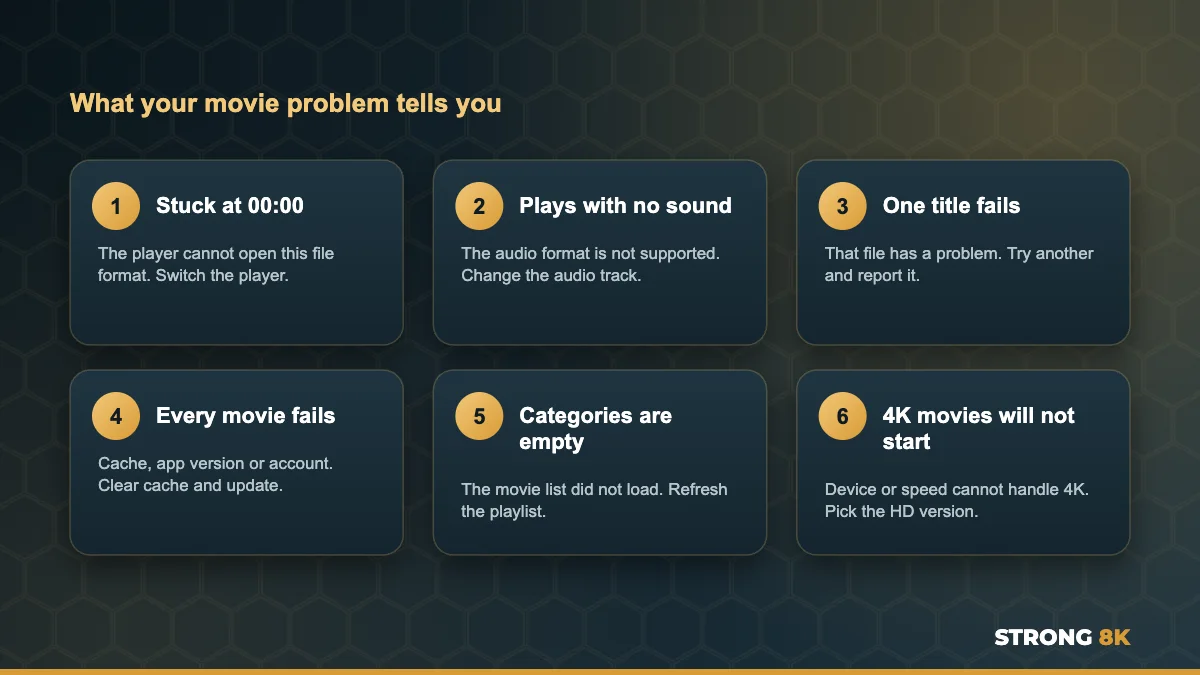
| What happens | Most likely cause | Go to |
|---|---|---|
| One movie or episode will not play | That file has a problem | Fix 1 |
| Every movie stuck at 00:00 | Player engine cannot open the format | Fix 2 and Fix 4 |
| Picture plays but no sound | Audio format not supported by the device | Fix 3 |
| Movies or Series sections are empty | The on demand list did not load | Fix 5 |
| 4K movies will not start | Device or internet cannot handle 4K | Fix 6 |
| Every movie shows an error box | Cache, app version or account | Fix 4 and Fix 7 |
1. Try Another Title
Start by playing two or three other movies. If they work, the title you chose has a problem, for example a file being replaced with a better copy. Send our team the movie or series name, and the season and episode, and we will check it.
2. Switch the Player Engine
A movie stuck at 00:00 usually means the built in player cannot open that file format. Most IPTV apps include several players, often called Default, Exo, VLC or Native, and some let you use an external player such as VLC or MX Player. Open Settings, find Player or Video player, choose a different one and try the same title again.
3. Fix a Movie With No Sound
Films often include surround sound formats such as DTS or Dolby, and many streaming sticks and TV apps cannot play every one of them. The picture plays, but you hear nothing.
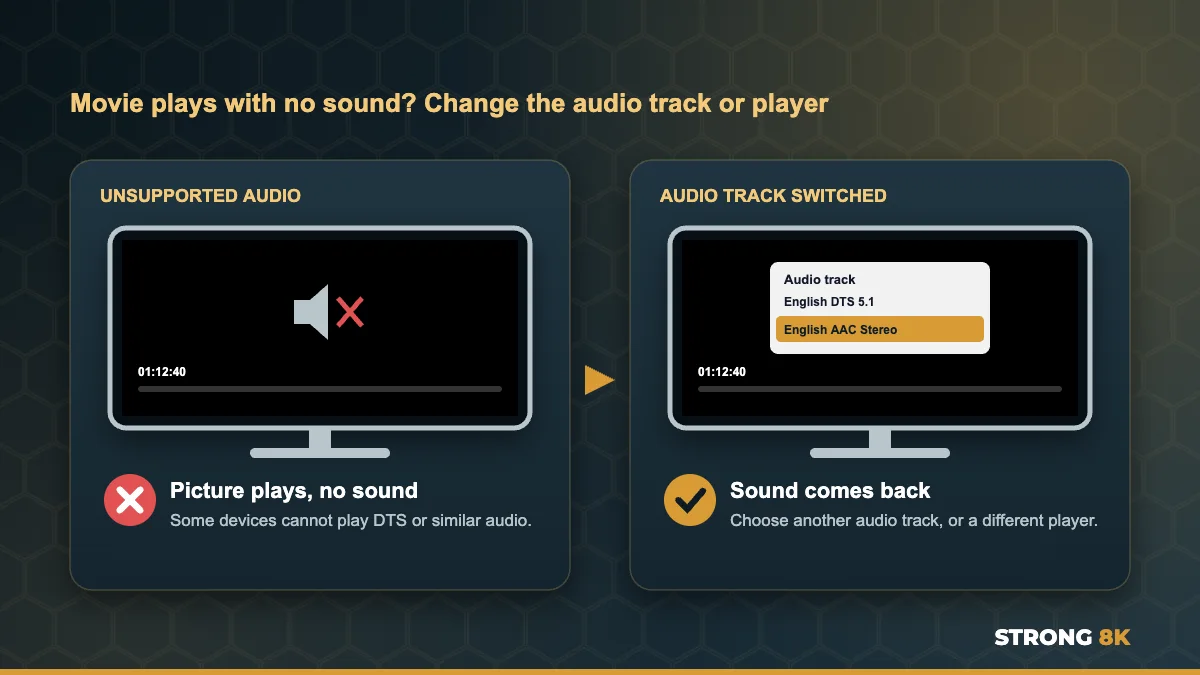
- While the movie plays, open the player menu and choose Audio or Audio track
- Pick another track, such as stereo or AAC, if one is listed
- If there is no other track, switch to a different player engine (Fix 2)
- Using a soundbar or AV receiver? Test with the TV speakers to rule out the sound system
A movie you want to watch will not play? Send us the title and your device, and we will check the file and the best player for it.
Check a Movie4. Clear the Cache and Update the App
If every movie fails while live TV works, clear the app cache: on Firestick and Android TV go to Settings, Applications, Manage Installed Applications, choose the app, Force stop, then Clear cache. Then check for an app update. Smart TV system updates can stop older app versions from playing movies, and Samsung owners in particular have reported this after Tizen updates. Our guide to the Strong 8K IPTV play back error covers the error box version of this problem.
5. Refresh the Playlist if Categories Are Empty
The movie and series library is large, and on older devices it sometimes fails to load while live channels appear. Refresh or reload the playlist in the app settings and wait a full minute. If it is still empty, clear the cache, restart the device from the power and free up storage, as low storage stops large lists loading. Our guide on Strong 8K IPTV not loading has more on this.
6. Choose the HD Version Over 4K
4K films need a capable device and a steady internet speed of about 25 Mbps. Older Firesticks and some Smart TVs cannot play every 4K file. If a 4K movie will not start or keeps stopping, choose the HD version of the same title. Our guide to stop IPTV buffering shows how to check your speed on the TV.
7. Check Your Account and Screens
If movies and live channels both fail, close the app on other devices in case your screen limit is reached, and make sure your plan is active. Our team can check your account in a minute.
8. Test in the Strong 8K App
The free Strong 8K app (8K Pro) is set up for our movie and series library. If a title plays there but not in your usual player, the player is the problem. You can also compare players in our list of the best IPTV player apps for Firestick.
Series Tips
- If the episode list does not appear, open another series first, then go back, so the app loads the list again
- If an episode plays the wrong one, refresh the playlist so the series list updates
- If resume does not work, it is stored by the app, so clearing data resets it
Frequently Asked Questions
Why do live channels work but movies do not play?
Movies are full files in many formats, while live TV is a stream. Your player may not open some movie formats. Switch the player engine, clear the cache and update the app.
Why is my IPTV movie stuck at 00:00?
The player cannot open that file. Choose a different player in the app settings, or an external player such as VLC, and try again.
Why does my IPTV movie play with no sound?
The film uses an audio format your device cannot play, such as DTS. Change the audio track in the player menu, or switch to a different player.
Why are the Movies and Series sections empty?
The on demand list did not load, often due to low storage or a large library on an older device. Refresh the playlist, clear the cache and free up storage.
What should I do if one movie never plays?
Send our team the title. We can check and replace the file on our side.
Get Back to Watching
Switch the player for movies stuck at 00:00, change the audio track for silent films, and refresh the playlist for empty sections. Those three fixes solve almost every movie and series problem. For other issues, see our complete Strong 8K IPTV troubleshooting guide, or contact Strong 8K IPTV support.