
Strong 8K IPTV App Crashing or Closing? How to Fix It
You open the app, the logo appears, maybe the channel list starts to load, and then it closes and drops you back to the home screen. Sometimes it happens straight away, sometimes after a few minutes of watching. An IPTV app that keeps crashing is almost always a device problem rather than a problem with your Strong 8K subscription, and the most common cause is simply that the device has run out of space or memory.
Quick answer: force stop the app and clear its cache, free up at least 500 MB of storage, then restart the device from the power. If it still crashes, update or reinstall the app, or switch to a lighter player on older devices.
Why IPTV Apps Crash or Close
IPTV apps download a large list of channels, movies and series and keep a lot of it in memory. Streaming devices like the Firestick have far less memory than a phone, so anything that eats into it can push the app over the edge.
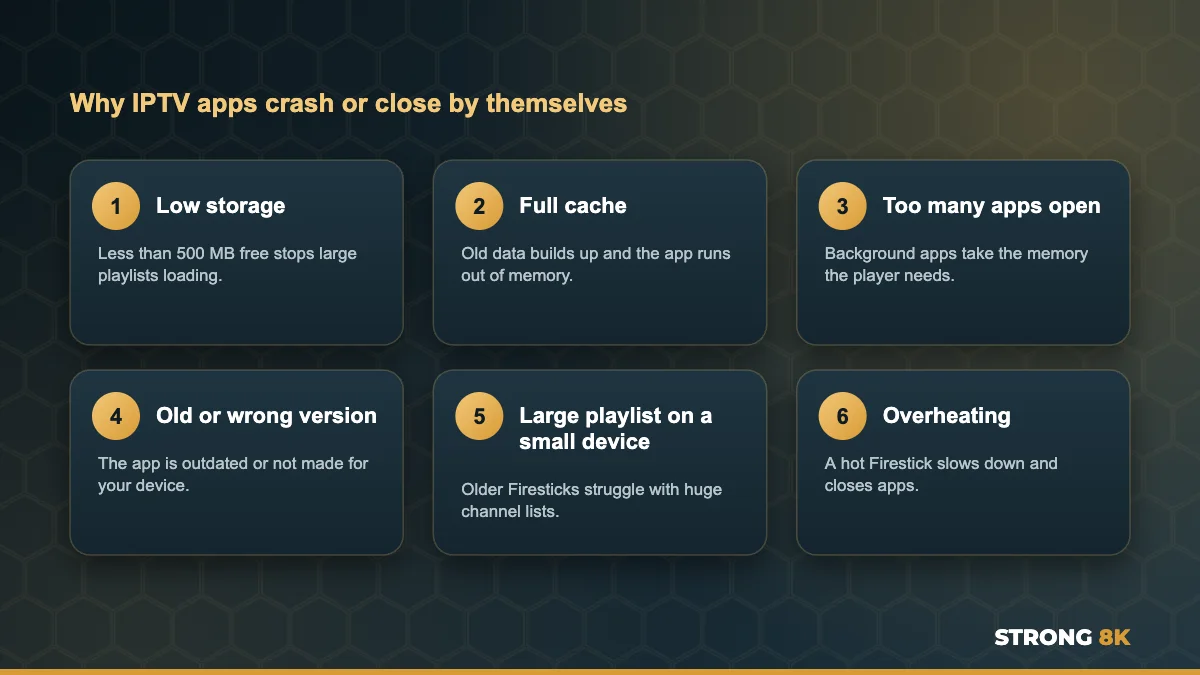
A quick test tells you where to look. Open another streaming app, such as YouTube. If that crashes too, the device needs attention. If only the IPTV app closes, focus on that app.
1. Force Stop the App and Clear the Cache
This fixes more crashes than anything else. Clearing the cache removes old temporary data but keeps your login.

On Smart TVs there is often no cache option, so unplugging the TV for 60 seconds does a similar job by clearing the app memory.
2. Free Up Storage
When storage is nearly full, the app has nowhere to save the channel list and closes. On Firestick check your space under Settings, My Fire TV, About, Storage. Keep at least 500 MB free, ideally more. Uninstall apps you no longer use and clear the cache of large apps such as other streaming services.
3. Restart the Device From the Power
Pressing the power button on the remote only puts most devices into standby, so the memory is never fully cleared. Unplug the device for 30 seconds, or on Firestick go to Settings, My Fire TV, Restart. Do this once a week to keep things running smoothly.
4. Close Other Apps Running in the Background
Apps you opened earlier can keep running and hold on to memory. Restarting the device closes them all. On Android TV boxes you can also force stop apps you are not using from the Applications menu.
Still crashing? Tell us your device model and app name, and we will tell you the setup that runs best on it.
Ask Our Team5. Update the App and the Device
Crashes often start right after a system update, because the old app version no longer matches. Check for a system update on your device (on Firestick under Settings, My Fire TV, About, Check for Updates), then update your IPTV app. If you use the Strong 8K app, get the latest version from the Strong 8K app (8K Pro) page.
6. Clear Data or Reinstall
If clearing the cache did not help, choose Clear data in the same menu. This resets the app completely and removes your saved login, so keep your details ready. If it still crashes, uninstall the app, restart the device and install it fresh from the official source. Our guide to install IPTV on Firestick walks through each screen.
7. Use a Lighter Player on Older Devices
Older Firestick models and budget Android boxes can struggle with a very large playlist. A lightweight player opens faster and uses less memory. Your Strong 8K login works in several players, so you can switch without changing your subscription. Our list of the best IPTV player apps for Firestick includes lighter options.
8. Let the Device Cool Down
A Firestick hidden behind the TV can get very hot, and a hot device slows down and closes apps. Use the HDMI extender that comes in the box so the stick sits away from the TV, and make sure air can reach it. If it feels very hot, unplug it for a few minutes.
Crashing on Specific Devices
| Device | Most common cause | First fix to try |
|---|---|---|
| Firestick Lite and older models | Low memory with a large playlist | Clear cache, free storage, try a lighter player |
| Firestick 4K and 4K Max | Storage full after updates | Free up storage, restart |
| Samsung and LG Smart TV | App memory full | Unplug the TV for 60 seconds, update the app |
| Android TV box | Too many apps running | Restart and force stop unused apps |
| Phone or tablet | Old app version | Update the app from the store |
When Only Playing Causes a Crash
If the app opens fine but closes the moment a channel starts, the player engine may not suit your device. Switch the player in the app settings and test again. If playback shows an error message instead of closing, see our guide to the Strong 8K IPTV play back error, and if the app gets stuck rather than closing, our guide on Strong 8K IPTV not loading can help.
Tried everything and it still closes? Send a short video or photo of what happens, and our team will help you fix it.
Get Help NowFrequently Asked Questions
Why does my IPTV app keep closing on Firestick?
Usually low storage, a full cache or too little memory for a large playlist. Force stop the app, clear the cache, free at least 500 MB and restart the Firestick from the power.
Will clearing the cache delete my IPTV login?
No. Clearing the cache keeps your login. Clearing data does remove it, so only use Clear data if the cache alone does not fix the crash.
Why did my IPTV app start crashing after an update?
A system update can make an older app version unstable. Update the app, or uninstall it and install the latest version.
Is the app crashing a problem with my Strong 8K subscription?
No. Crashes come from the device or the app. Your subscription only affects whether the login is accepted.
What is the best IPTV app for an older Firestick?
A lightweight player usually runs best. The free Strong 8K app is also built to work well with our service on Firestick.
Get Back to Watching
Clear the cache, free up storage and restart from the power, and most crashes stop for good. For other problems, see our complete Strong 8K IPTV troubleshooting guide, or contact Strong 8K IPTV support. New to Strong 8K? Test it on your own device first with a 24 hour IPTV free trial.