

Strong 8K IPTV Not Working? Complete Troubleshooting Guide
When your channels stop loading right before a big match, it is frustrating. The good news: most IPTV problems are fixed in under five minutes, and most of them come from the app, the device or the internet connection, not from your subscription.
This guide is built from the real errors our customers send us. Find the exact message on your screen in the error table, or jump straight to your problem below. Every section gives you the fastest fixes first.
On this page:
- Quick fixes to try first
- 60 second check: what is causing it?
- Error messages and what they mean
- Not loading or stuck on loading
- App crashing or closing
- Login and playlist errors
- Black screen and channel errors
- Movies and series not playing
- Buffering and freezing
- Error code 458 and device limits
- Third party apps
- Device specific fixes
- How to prevent problems
- Contact Strong 8K support
- FAQ
Quick Fixes: Try These 5 Steps First
Before you change any settings, run through these five steps in order. Together they solve the majority of issues we see, from endless loading to sudden black screens.
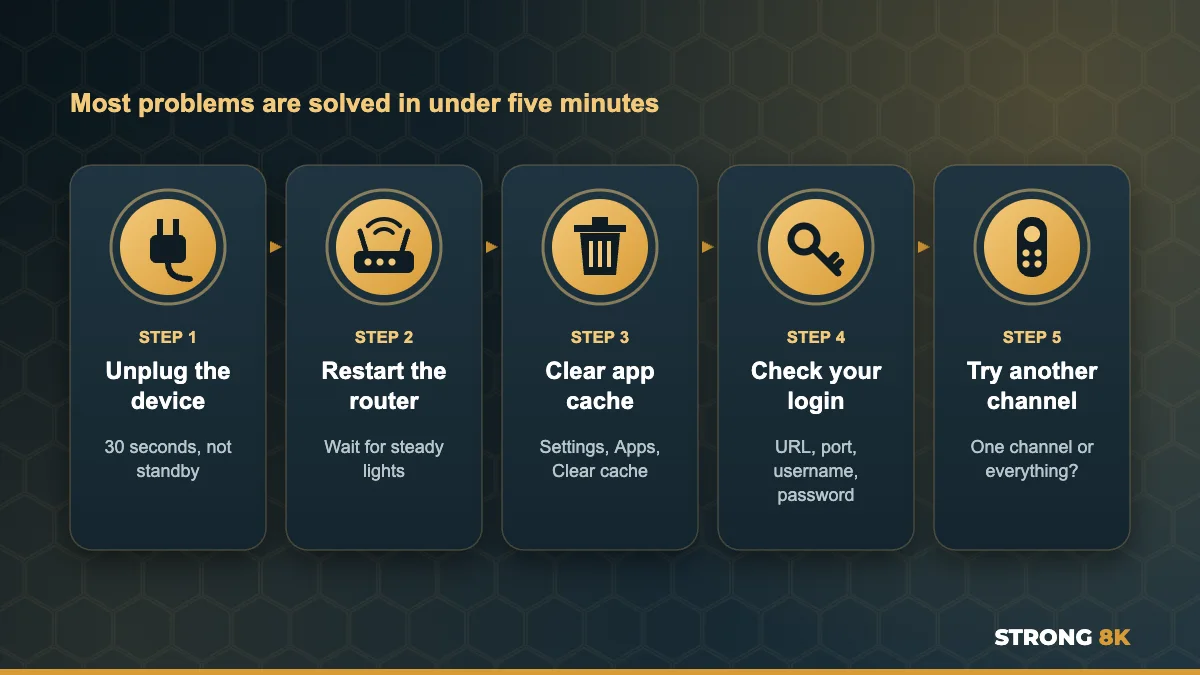
- Restart your device properly. Unplug your Firestick, TV or box from the power for 30 seconds. The power button on the remote only puts most devices into standby.
- Restart your router. Unplug it for 30 seconds and wait until all the lights are steady.
- Clear the app cache. Close the app, clear its cache in your device settings, then open it again.
- Check your login and subscription. Make sure your username, password and server URL are typed exactly as sent to you, and that your subscription is active.
- Try a different channel. If every other channel works, the problem is that one channel, not your setup.
Is It Your Internet, Your App or the Server? (60 Second Check)
Every IPTV problem comes from one of four places: your internet connection, your device, the app you use, or a single channel on the server. Match what you see with the table below.

| What you see | Most likely cause | Where to go |
|---|---|---|
| Nothing loads in any app, on any device | Internet connection or login details | Not loading or Login errors |
| It works on your phone but not on your TV | The TV, the device or the app on it | Device fixes |
| Your login works in the Strong 8K app but not in another app | The third party app, not your account | Third party apps |
| Only one channel fails, the rest work | That channel is temporarily down | Channel errors |
| Live TV works but movies and series fail | A problem with that video on demand title | Movies and series |
| Everything buffers, mostly in the evening | Internet speed, Wi-Fi or a busy network | Buffering |
| Errors start when someone else is watching | Too many devices for your plan | Device limits |
Strong 8K IPTV Error Messages and What They Mean
IPTV apps rarely explain their errors in plain English. Here is what each message really means, collected from real customer screenshots, with the quickest fix for each one.

| Error on your screen | What it means | Quick fix |
|---|---|---|
Login Failed! Please check your Server address, Username and Password. | The app cannot sign in, usually because of a typo, a wrong server URL or an expired account. | Re-enter your details exactly. See login fixes |
All playlists failed to load. Please check your subscriptions or contact your IPTV provider. | IBO Player cannot read the playlist you added on its website. | Re-add the playlist on the IBO Player website. See fix |
No Connection! Playlist is not working. | The app cannot reach the server, often a connection or DNS problem. | Restart your router and re-add the playlist. See fix |
Notice: Trial Period Expired! | The IBO Player app trial has ended. This is the app’s own fee, not your Strong 8K subscription. | Activate the app or switch to the free Strong 8K app. See fix |
PLAY BACK ERROR! Please contact the server provider for more information. | That movie or stream failed to start. | Try another title and clear the cache. See fix |
Channel will be back soon. | That channel is temporarily offline on the server. | Wait a few minutes or use another version of the channel. See fix |
NO SIGNAL FOUND | The source feed for that channel is not coming through. | Switch to another version of the channel. See fix |
An error occurred: code 458. Retrying (2/5) | The server refused the stream, most often because the account is in use on too many devices. | Close the app on your other devices. See fix |
Parse Error. There was a problem parsing the package. | Your Firestick could not install the app file. It is incomplete or not compatible. | Download the app again from the official link. See fix |
No Information (in the TV guide) | The EPG (TV guide data) has not loaded for that channel. | Refresh the EPG. See fix |
Cannot find your error? Send us a screenshot on WhatsApp and our team will tell you the fix.
Send ScreenshotStrong 8K IPTV Not Loading or Stuck on the Loading Screen
If the app opens but the loading circle never stops, or the channel list stays empty, the app is waiting for a response it is not getting. The most common reasons are a weak internet connection, a full app cache, an outdated app version or a busy server at peak time. For every fix matched to what you see on screen, read our full guide on Strong 8K IPTV not loading.
- Test your internet by opening YouTube or a speed test on the same device. If those are slow too, the problem is your connection.
- Clear the app cache and reopen the app. Old cached data is the most common cause of a stuck loading screen.
- Update the app to the latest version, or uninstall and reinstall it from the Strong 8K app (8K Pro) page. If the app itself is stuck, see our guide to the Strong 8K app stuck on the loading screen.
App Crashing or Closing Back to the Home Screen
When the app opens and then drops you back to your TV home screen, the device is usually running out of memory or storage, or the app version does not suit your device. Firesticks and older Smart TVs are the most affected because they have very little free space. Our guide to the Strong 8K IPTV app crashing covers every fix in detail.
- Free up storage. Keep at least 500 MB free and uninstall apps you do not use.
- Close background apps before opening your IPTV app.
- Clear the cache, then the data if the cache alone does not help. Clearing data removes your saved login, so keep your details ready.
- Reinstall the latest version from the official source.
Parse Error When Installing on Firestick
The message “There was a problem parsing the package” appears when your Firestick cannot read the app file you are installing. The file either did not download completely, or it was built for a different version of Android than your Fire OS. Delete the file and download it again from the official link, following our guide to install IPTV on Firestick. If it keeps happening, see our full guide to the Firestick parse error.
Login and Playlist Errors
Login and playlist errors mean the app cannot connect to your account. In most cases nothing is wrong with your subscription. A single missing character, an extra space or the wrong login type is enough to stop it working.
Login Failed: Check Server Address, Username and Password
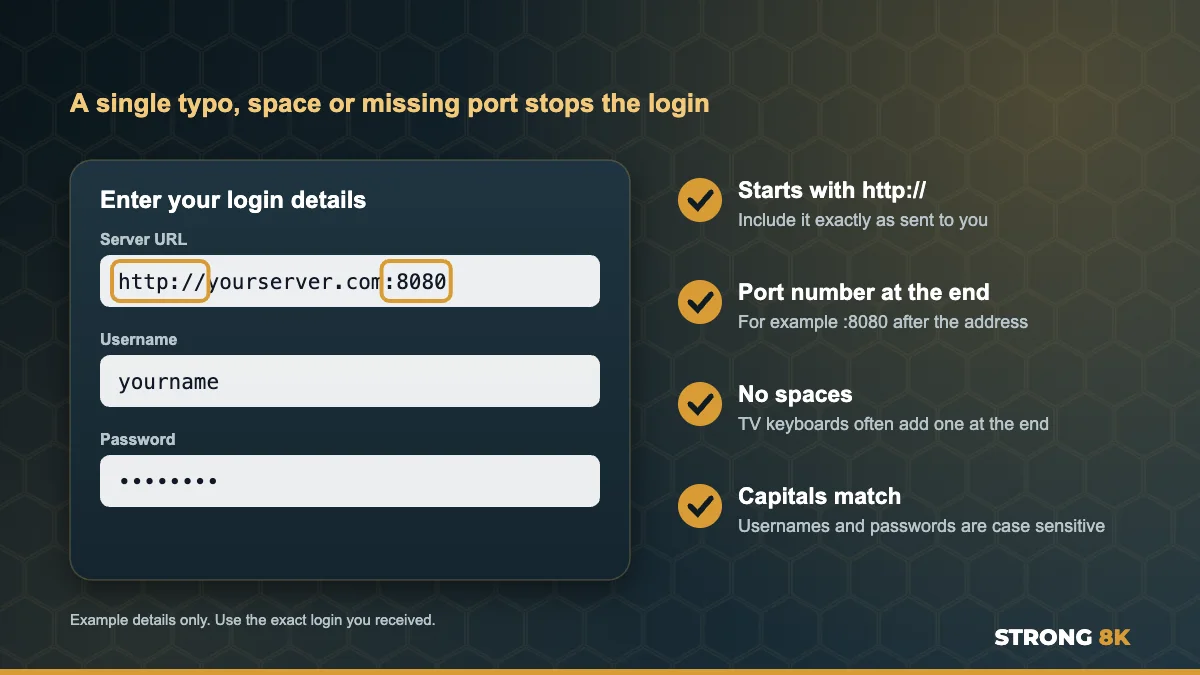
This error appears when the server rejects the details you entered. Our full guide to fixing Strong 8K IPTV login failed errors covers every login type, but start with these points one by one:
- The server URL includes http:// and the port number at the end, exactly as sent to you.
- There are no spaces before or after your username and password. Many TV keyboards add one automatically.
- Capital letters match. Usernames and passwords are case sensitive.
- You are using your latest login details. If you renewed or changed plans, your details may have changed.
Playlist Not Loading on IBO Player
IBO Player does not take your login on the TV. Instead, you add your playlist on the IBO Player website using the MAC address and device key shown on your TV screen. “All playlists failed to load” usually means the playlist was added with a typo, added to the wrong MAC address, or the link has expired. Delete the playlist on the website, add it again carefully, then press Reload in the app. Our step by step guide for a Strong 8K IPTV playlist not loading on IBO Player covers every cause, including the MAC address trap.
“No Connection, Playlist Is Not Working”
This popup means the app cannot reach the server at all. Restart your router first. If that does not work, change your device DNS to a public DNS such as 1.1.1.1 or 8.8.8.8, because some internet providers block or slow IPTV servers through their own DNS. Then re-add the playlist. Our full guide to the No Connection, playlist is not working error walks through every step, including the date and time fix.
IBO Player Trial Period Expired
This message confuses many customers, so to be clear: it has nothing to do with your Strong 8K subscription. IBO Player is a separate app that charges its own activation fee after a free trial. Your channels are still active. You can either pay IBO Player for activation on their website, or switch to the free Strong 8K app, which works with your login at no extra cost. Read more in our guide to the IBO Player trial period expired message.
Login still failing, or need help moving to the Strong 8K app? We can check your account and guide you step by step.
Get HelpBlack Screen, No Signal and Channel Errors
If the app loads and your channel list appears but a channel will not play, the problem is usually that specific channel or the player settings, not your whole service. Always test two or three other channels first. That single check tells you which fix you need.
Black Screen or Blank Screen
A black screen with the channel name showing, or a video stuck at 00:00, usually means the player cannot decode the stream. Open the app settings and switch the video player or decoder, for example from hardware to software decoding. If that does not help, switching to another version of the channel often fixes it. Our full guide to the Strong 8K IPTV black screen covers every cause.
“Channel Will Be Back Soon”
This holding screen means the server knows the channel is temporarily offline and is showing a message instead of an error. It is usually short, often a few minutes, and you do not need to restart anything. If a version of the same channel is available in another quality, try that while you wait. We explain more in our guide to Channel will be back soon.
“No Signal Found”
Colour bars with “No Signal Found” mean the source feed for that channel is not reaching the server. Like the message above, it is a channel issue, not an account issue. Switch to another version of the channel if one is listed, or check again in a few minutes. If the same channel shows no signal for more than an hour, let our team know. See our guide to Strong 8K IPTV no signal found for both kinds of no signal message.
EPG Showing “No Information”
When channels play but the TV guide shows “No Information”, the EPG data has not downloaded yet or needs refreshing. Go to the app settings, find the EPG or TV guide option and update it. Give it a few minutes, as the guide data is large. Some smaller channels do not carry guide data at all. Our guide to the EPG showing No Information explains the time shift setting too.
Channel still down? Tell us which channel and we will check it on our side right away.
Report a ChannelMovies and Series Not Playing
Movies and series are stored separately from live channels. That is why live TV can work perfectly while one movie refuses to start. Most of these errors affect a single title, not the whole library.
“Play Back Error” on Movies
“PLAY BACK ERROR! Please contact the server provider” means the app could not open that video file. First, try a different movie. If others play, the problem is that one title, and our team can refresh it for you. If no movies play at all, clear the app cache, restart the device and check that your app is up to date. Our guide to the Strong 8K IPTV play back error goes through every fix.
Movie Stuck at 00:00
If the player opens but the timer never moves from 00:00, the file is not loading. Change the video player in the app settings, as some players handle certain movie formats better than others, then try again. For more, see our guide to Strong 8K IPTV movies and series not playing.
Buffering and Freezing
Buffering is almost always about the connection between your device and the server. As a guide, you need around 10 Mbps for HD, 15 Mbps for Full HD, 25 Mbps for 4K and 50 Mbps for 8K, per screen. Use a cable instead of Wi-Fi where you can, and if buffering only happens in the evening or during big matches, a different DNS or a VPN can help. Our full guide on how to stop IPTV buffering covers nine fixes step by step.
Error Code 458 and Device Limit Errors
“An error occurred: code 458. Retrying” is most often seen in TiviMate and similar players. It means the server refused the stream, and the most common reason is that your account is already playing on more devices than your plan allows.
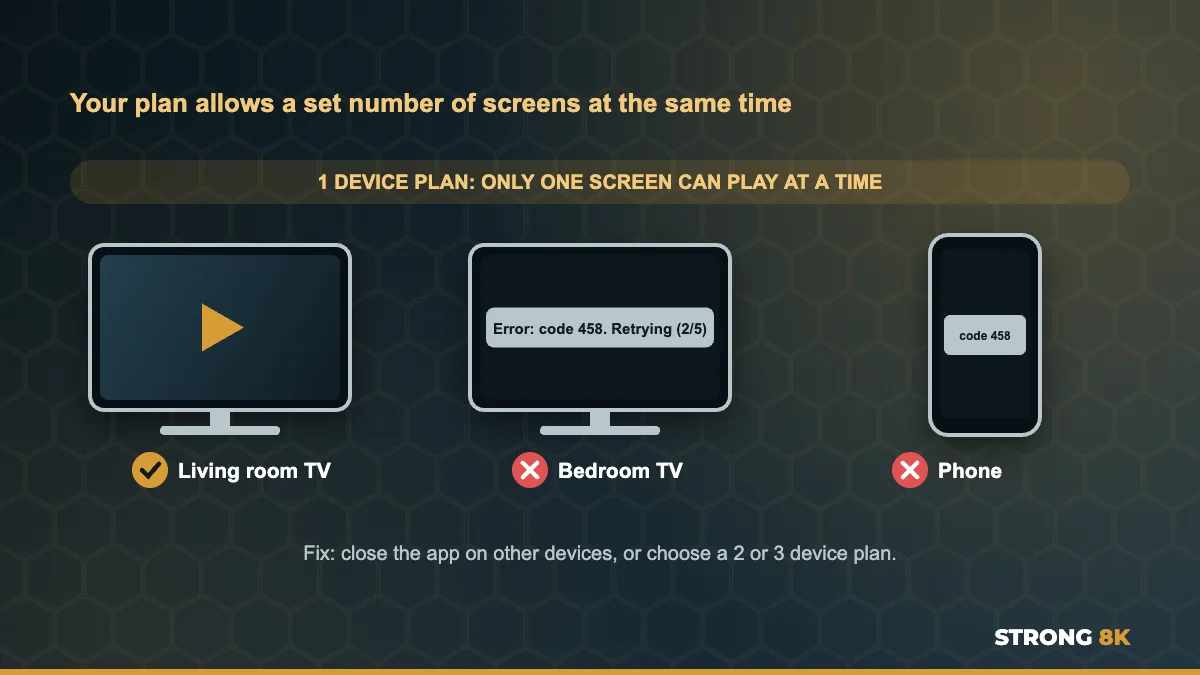
Strong 8K plans are available for 1, 2 or 3 devices. If your plan covers one device and the app is still open on a phone or a second TV, the next device can be refused. Close the app fully on the other devices, wait a minute, then try again. If you regularly watch on more screens, here is how to watch IPTV on two TVs at the same time with a multi device plan. Our guide to Strong 8K IPTV error code 458 explains it step by step.
Third Party Apps: IBO Player, Smarters, VU Player and Others
Your Strong 8K login is a standard IPTV login, so it can be added to many apps. But each third party app is built and updated by a different company, which causes problems we cannot control:
- Some apps charge their own activation fee after a trial, like IBO Player.
- Some app versions stop working after an update, or are not updated for your device.
- Some apps use a different login format, such as an M3U link instead of Xtream Codes.
- Copies of apps from unofficial sources often contain old or broken versions.
For the most stable experience, we recommend the free Strong 8K app, built for Strong 8K logins, with no activation fee and full support from our team. If you prefer another player, our list of the best IPTV player apps for Firestick compares the most popular options, and our guide to third party IPTV apps not working explains login types and fees.
Does IPTV Smarters Work with Strong 8K?
Many customers ask why their login works in one app but fails in IPTV Smarters. The answer is usually the app version or the login format, not your account. If you see a login error in Smarters, test the same details in the Strong 8K app. If they work there, your account is fine and the issue is with the Smarters app. Our guide to IPTV Smarters not working with Strong 8K shows the correct URL format.
Device Specific Fixes
Some problems are more common on certain devices. Here is what to check first on yours.
| Device | Most common issue | First thing to try |
|---|---|---|
| Amazon Firestick and Fire TV | Low storage, crashing, parse error | Free up storage and restart from the power |
| Samsung Smart TV and LG Smart TV | App not loading, playlist errors | Unplug the TV for 60 seconds to clear memory |
| Android TV and Google TV | Buffering, outdated app | Update the app and use Ethernet |
| Apple TV, iPhone and iPad | Login format errors | Check the server URL and port |
| MAG box and set top boxes | Portal not loading | Check the portal URL and restart the box |
Step by step setup for every device is in our Strong 8K IPTV installation guides.
How to Prevent Strong 8K IPTV Problems
- Restart your device once a week by unplugging it, to clear memory.
- Keep your app updated and install it only from official sources.
- Clear the app cache every couple of weeks.
- Use a wired connection for your main TV.
- Stay within your device limit and close the app on devices you are not using.
- Test before the match. Open the channel 15 minutes before kick off so there is time to fix anything.
Still Not Working? Contact Strong 8K Support
If you have tried the fixes above and the problem continues, our team is ready to help on WhatsApp, or you can contact Strong 8K IPTV support another way. You will get the fastest answer if your first message includes:
- Your device, for example Firestick 4K or Samsung TV
- The app name and version you are using
- A screenshot or photo of the error
- When the problem started
- What you have already tried
Ready to send those details? Our team will reply on WhatsApp.
Chat With SupportFrequently Asked Questions
Why is my Strong 8K IPTV not working today?
If it worked yesterday, the cause is usually temporary: an app update, a full cache, a router issue or a single channel being offline. Restart your device and router, clear the app cache and test a few channels. If nothing loads at all, check that your subscription is still active.
Why does IPTV work in the day but buffer at night?
Evening is peak time for internet use. Your provider’s network is busier, and some providers slow down streaming traffic. A wired connection, a different DNS or a VPN can help.
Why do some channels work but others show a black screen?
If most channels play, your account and connection are fine. The channel that fails is either temporarily offline or uses a format your player struggles with. Change the player or decoder in settings, or try another version of the channel.
Is the IBO Player “Trial Period Expired” message about my subscription?
No. It refers to the IBO Player app’s own free trial, not your Strong 8K subscription. Your channels are still active. Activate the app on its website, or use the free Strong 8K app instead.
Which app is best for Strong 8K IPTV?
We recommend the free Strong 8K app (8K Pro). It is built for Strong 8K logins, has no activation fee and is fully supported by our team.
How many devices can I use at the same time?
It depends on your plan. Strong 8K plans are available for 1, 2 or 3 devices. Using more devices than your plan allows can cause errors such as code 458.
Do I need a VPN for Strong 8K IPTV?
Not always. Many customers watch without one. A VPN can help if your internet provider slows down or blocks streaming, which usually shows up as buffering during big events.
How do I know if my subscription has expired?
An expired account usually shows a login error in every app, on every device. Message our team on WhatsApp and we will check your account status, or see the IPTV subscription page to renew.
Get Back to Watching
Most Strong 8K IPTV problems are solved with a proper restart, a cache clear and a quick check of your login details. When they are not, our support team is one message away. New to Strong 8K? Test the service on your own device first with a 24 hour IPTV free trial.
New device not installing the app? Some new Fire TV Sticks run Vega OS and block sideloading. See Vega OS explained. Buffering on a fast line? Read Ethernet vs Wi-Fi for IPTV.